

Introduction
A WiFi connection is essential for work, study, entertainment, and communication. Whether you are browsing the internet, attending online classes, streaming videos, or playing games, a stable WiFi connection makes everything easier. However, one of the most common problems users face is when their device refuses to connect to WiFi. This issue can occur on Windows PCs, Macs, Android phones, iPhones, tablets, and even smart TVs.
The good news is that most WiFi connection problems can be solved without professional help. In this guide, you will learn the common reasons why WiFi is not connecting, simple troubleshooting methods, advanced fixes, and tips to prevent the problem from happening again.
Why Is My WiFi Not Connecting?
There are many possible reasons why your device cannot connect to WiFi. Some of the most common causes include:
- Weak WiFi signal
- Incorrect WiFi password
- Router or modem issues
- Outdated network drivers
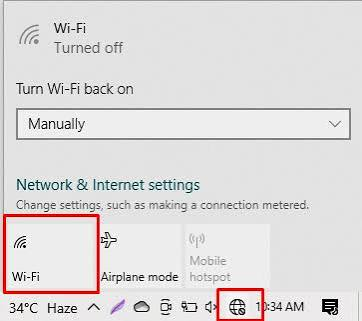
- Airplane Mode enabled
- ISP (Internet Service Provider) outage
- Incorrect network settings
- IP address conflicts
- Hardware problems
- Software bugs or operating system updates
Identifying the exact cause makes fixing the issue much easier.
Step 1: Check Your WiFi Signal
The first thing to check is whether your device is within range of the router.
A weak signal can prevent devices from connecting.
Try these tips:
- Move closer to the router.
- Remove obstacles between your device and the router.
- Restart the connection.
- Avoid placing the router near thick walls or metal objects.
Step 2: Restart Your Device
Restarting your computer or smartphone refreshes the network settings.
Windows
- Click Start
- Select Power
- Choose Restart
Android
- Hold the Power button.
- Tap Restart.
iPhone
- Turn the phone off.
- Wait 30 seconds.
- Turn it back on.
Many temporary WiFi problems disappear after a simple restart.
Step 3: Restart Your Router
Sometimes the router is the actual problem.
Follow these steps:
- Turn off the router.
- Unplug the power cable.
- Wait about 30 seconds.
- Plug it back in.
- Wait until all lights become stable.
This refreshes the internet connection and clears temporary network errors.
Step 4: Verify the WiFi Password
An incorrect password is one of the most common reasons a device cannot connect.
Double-check:
- Uppercase letters
- Lowercase letters
- Numbers
- Special characters
Remember that WiFi passwords are case-sensitive.
Step 5: Forget and Reconnect to the Network
Sometimes saved network settings become corrupted.
Windows
- Open Settings
- Go to Network & Internet
- Select WiFi
- Click Manage Known Networks
- Choose your network
- Click Forget
Reconnect by entering the password again.
Step 6: Check Airplane Mode
Many users accidentally enable Airplane Mode.
Make sure:
- Airplane Mode is OFF.
- WiFi is ON.
This setting is available on both computers and smartphones.
Step 7: Update Network Drivers
Old or damaged drivers can prevent WiFi from working correctly.
Windows
- Open Device Manager.
- Expand Network Adapters.
- Right-click your WiFi adapter.
- Select Update Driver.
- Choose Search Automatically.
Install any available updates.
Step 8: Run the Windows Network Troubleshooter
Windows includes a built-in repair tool.
Go to:
Settings → System → Troubleshoot → Other Troubleshooters → Network and Internet
Run the troubleshooter and follow the on-screen instructions.
Step 9: Check Router Lights
Router lights provide useful information.
Normally you should see:
- Power light
- Internet light
- WiFi light
If the Internet light is red or blinking continuously, there may be a problem with your ISP.
Step 10: Test Another Device
Try connecting another phone or laptop.
If:
- Only one device fails → the issue is with that device.
- All devices fail → the router or internet connection is likely the problem.
Step 11: Reset Network Settings
Resetting the network removes corrupted configurations.
Windows Command Prompt (Run as Administrator)
netsh winsock reset
netsh int ip reset
ipconfig /release
ipconfig /renew
ipconfig /flushdns
Restart your computer after running these commands.
Step 12: Disable VPN or Proxy
VPNs and proxy servers can interfere with internet connections.
Temporarily disable them and test the WiFi again.
If WiFi works, reconfigure or update your VPN settings.
Step 13: Check for Windows Updates
Operating system updates often include bug fixes for networking.
Go to:
Settings → Windows Update
Install any available updates and restart your computer.
Step 14: Change DNS Server
A faulty DNS server can cause connection issues.
Popular public DNS servers include:
- Google DNS
- 8.8.8.8
- 8.8.4.4
- Cloudflare DNS
- 1.1.1.1
- 1.0.0.1
Changing DNS can improve both reliability and browsing speed.
Step 15: Check Internet Service Status
Sometimes the problem is not your device.
Your ISP may be experiencing:
- Maintenance
- Network outage
- Technical issues
Contact your provider if the outage continues.
Common WiFi Error Messages
Some common WiFi-related messages include:
- Can’t connect to this network
- No Internet, secured
- Connected without Internet
- Authentication error
- Unable to obtain IP address
- Limited connectivity
Each message points to a different type of networking problem.
Tips to Prevent WiFi Problems
To keep your WiFi working smoothly:
- Restart your router once every few weeks.
- Keep router firmware updated.
- Update device drivers regularly.
- Use strong passwords.
- Place the router in a central location.
- Reduce interference from other electronic devices.
- Avoid connecting too many devices at the same time.
Regular maintenance helps prevent future connection issues.
Frequently Asked Questions
Why does my WiFi say “Connected, No Internet”?
This usually means your device is connected to the router, but the router has lost its internet connection.
Why does WiFi work on my phone but not my laptop?
The laptop may have outdated drivers, incorrect network settings, or a disabled WiFi adapter.
How often should I restart my router?
Restarting your router once every few weeks can help maintain a stable connection.
Can antivirus software block WiFi?
Some antivirus or firewall programs may interfere with network connections. Temporarily disabling them can help identify the issue.
Also Read:https://www.drivereasy.com/
Conclusion
WiFi connection problems can be frustrating, but they are often easy to fix with a systematic approach. Start by checking your WiFi signal, restarting your device and router, verifying your password, and updating your network drivers. If the issue persists, resetting network settings, changing DNS servers, or checking with your internet service provider can often resolve the problem.
By following the troubleshooting steps outlined in this guide, you can identify the root cause of the issue and restore a stable internet connection. Regular maintenance, software updates, and proper router placement will also help reduce the chances of future WiFi connectivity problems.



