Outlook Not Opening: Causes and Easy Ways to Fix It
Microsoft Outlook is one of the most widely used email applications for personal and professional communication. It allows users to manage emails, calendars, contacts, tasks, and other important information in one place. However, sometimes Outlook may refuse to open, freeze on the loading screen, or close immediately after you try to launch it.
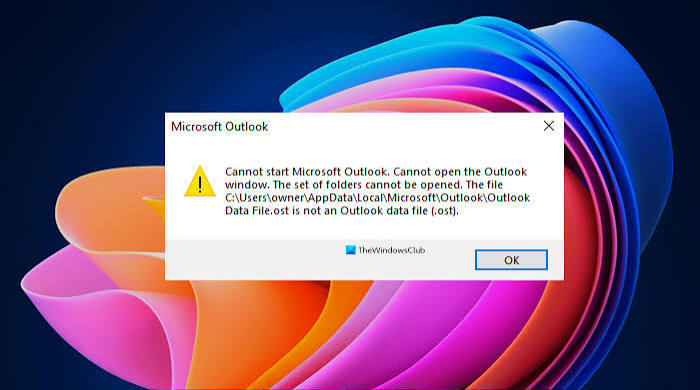
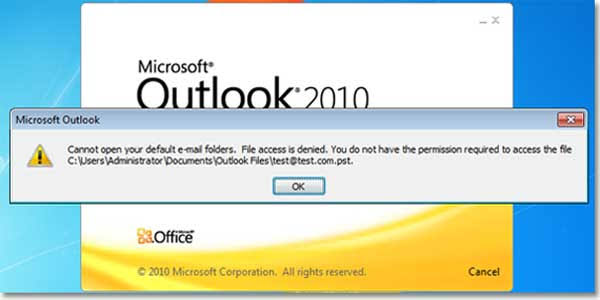
If you are experiencing the “Outlook not opening” problem, there is usually a simple reason behind it. The issue can be caused by a damaged Outlook profile, problematic add-ins, corrupted files, outdated software, or a problem with Windows. Fortunately, you can try several solutions before considering a complete reinstall.
Why Is Outlook Not Opening?
There are several possible reasons why Outlook does not start correctly. Understanding the cause can help you choose the right solution.
Common causes include:
- Corrupted Outlook data files
- Faulty Outlook add-ins
- A damaged Outlook profile
- Outdated Microsoft Office
- Windows system problems
- Outlook running in the background
- Insufficient system resources
- Problems with navigation settings
- Damaged Office installation
- Temporary software conflicts
The good news is that most of these problems can be fixed without losing your emails.
1. Restart Your Computer
The first solution is also one of the easiest. Restart your computer and then try opening Outlook again.
Sometimes Outlook may remain running in the background even after the application appears to be closed. A restart can close stuck processes and refresh Windows services.
After restarting your computer, wait a few seconds and launch Outlook normally.
2. Check if Outlook Is Already Running
If Outlook is stuck in the background, Windows may prevent another Outlook window from opening.
To check this, press Ctrl + Shift + Esc to open Task Manager. Look for Microsoft Outlook or an Outlook-related process in the list.
If you find Outlook running while no Outlook window is visible, select it and choose End Task.
After that, try opening Outlook again.
3. Start Outlook in Safe Mode
Outlook Safe Mode is a useful way to determine whether an add-in is causing the problem.
Press Windows + R to open the Run dialog box. Type:
outlook.exe /safe
and press Enter.
If Outlook opens in Safe Mode, an add-in may be responsible for the problem.
You can then open Outlook’s add-in settings and disable unnecessary or recently installed add-ins. Restart Outlook normally after disabling them.
4. Disable Problematic Add-Ins
Add-ins can add useful features to Outlook, but a faulty or incompatible add-in can prevent Outlook from opening.
If Outlook opens in Safe Mode, go to the Outlook add-in settings and review the installed add-ins. Disable them temporarily and restart Outlook.
If Outlook starts normally after this, enable the add-ins one at a time. This can help identify which add-in is causing the issue.
5. Repair Microsoft Office
If Outlook files or Office components are damaged, repairing Microsoft Office may solve the problem.
Open Windows Settings and go to Apps. Find Microsoft 365 or Microsoft Office in the installed applications list.
Choose the available Modify or Repair option. Depending on your Office version, you may see options such as Quick Repair and Online Repair.
Try Quick Repair first. If the problem continues, Online Repair may provide a more thorough repair.
6. Update Microsoft Office
An outdated version of Microsoft Office can sometimes cause compatibility problems with Windows or other software.
If you can open another Office application, such as Word, check for available Office updates. Installing the latest available updates can fix bugs and improve compatibility.
Keeping Windows updated can also help prevent software-related problems.
7. Create a New Outlook Profile
A corrupted Outlook profile can prevent the application from starting correctly.
If other troubleshooting methods do not work, creating a new Outlook profile may help.
Open the Windows Control Panel and search for Mail. Open the Mail setup and select Show Profiles.
From there, you can create a new profile and configure your email account.
If the new profile works correctly, the original Outlook profile may have been damaged.
8. Check Outlook Data Files
Outlook uses data files to store information such as emails, calendars, contacts, and other account data. If an Outlook data file becomes damaged, the application may behave unexpectedly.
Depending on your account and Outlook version, you may use an OST or PST file.
Microsoft provides tools and procedures for repairing certain Outlook data-file problems. Before making changes to important files, it is a good idea to keep a backup when possible.
9. Reset the Outlook Navigation Pane
A damaged navigation pane configuration can sometimes prevent Outlook from starting correctly.
You can reset it using the Run dialog box.
Press Windows + R, enter:
outlook.exe /resetnavpane
and press Enter.
This resets Outlook’s navigation pane settings. It does not normally delete your emails or other account information.
10. Make Sure Your Computer Has Enough Resources
Outlook may become difficult to start when your computer is under heavy load.
Close unnecessary programs and check Task Manager to see whether CPU, memory, or disk usage is unusually high.
Freeing some system resources may allow Outlook to start normally.
If your computer frequently becomes slow when opening applications, checking available storage and reducing unnecessary startup programs may also help.
11. Temporarily Check Security Software
Antivirus and security software are important for protecting your computer, but occasionally another program can interfere with Office applications.
If Outlook stopped opening after installing or updating security software, check the security program’s settings or support documentation.
Avoid permanently disabling your security protection. Instead, look for compatibility updates or approved troubleshooting options.
12. Reinstall Microsoft Office as a Last Resort
If none of the previous solutions work, reinstalling Microsoft Office may resolve deeply damaged installation files.
Before reinstalling Office, make sure you know your Microsoft account information and have any necessary product or subscription details available.
After reinstalling Office, install the latest updates and configure Outlook again.
Also Raed:https://www.easeus.com/
Final Thoughts
The Outlook not opening problem can be frustrating, especially when you need quick access to important emails or work information. However, the issue is often caused by something relatively simple, such as a stuck Outlook process, a faulty add-in, outdated Office software, or a damaged profile.
Start with the easiest solutions, such as restarting your computer and checking Task Manager. If Outlook still does not open, try Safe Mode, disable problematic add-ins, repair Microsoft Office, reset the navigation pane, or create a new Outlook profile.
If the problem continues after trying these solutions, repairing or reinstalling Microsoft Office may be the next step. With the right troubleshooting method, you can usually get Outlook working again without losing your important email information.