

Introduction
Microsoft Outlook is one of the most widely used email clients for personal and professional communication. It allows users to send and receive emails, manage calendars, schedule meetings, store contacts, and organise tasks in one convenient application. However, many users occasionally face the frustrating issue of Outlook not opening. The application may freeze on the loading screen, display an error message, crash immediately after launching, or fail to open altogether.
The good news is that most Outlook startup problems can be fixed without advanced technical knowledge. In this guide, you will learn the common causes of Outlook not opening, step-by-step troubleshooting methods, and practical tips to prevent the issue from occurring again.
Why Is Outlook Not Opening?
Several factors can prevent Outlook from launching correctly. Understanding the possible causes helps you choose the right solution.
Common reasons include:
- Corrupted Outlook profile
- Damaged PST or OST files
- Faulty add-ins
- Outdated Outlook or Windows updates
- Compatibility issues
- Corrupted Office installation
- Large mailbox size
- Antivirus software conflicts
- Insufficient system resources
- Temporary software glitches
Signs That Outlook Is Not Opening Properly
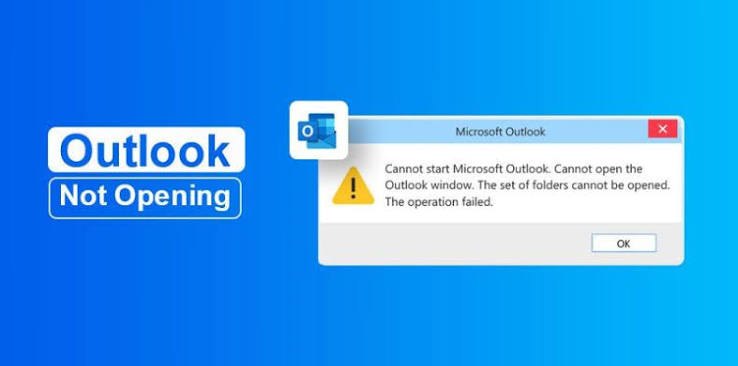
You may notice one or more of the following symptoms:
- Outlook stays on the loading screen.
- The application opens briefly and then closes.
- Outlook displays “Processing” continuously.
- Nothing happens when you click the Outlook icon.
- Outlook freezes after launching.
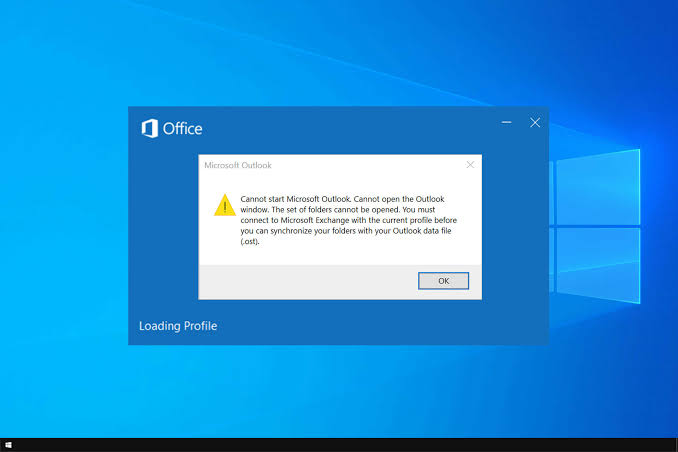
- Error messages appear during startup.
- Outlook becomes unresponsive.
These symptoms usually indicate either software corruption or configuration issues.
Solution 1: Restart Your Computer
Before trying advanced fixes, restart your computer.
c
After restarting:
- Open the Start menu.
- Click Power.
- Select Restart.
- Try opening Outlook again.
This simple step often resolves temporary startup issues.
Solution 2: Open Outlook in Safe Mode
Safe Mode starts Outlook without loading third-party add-ins.
To launch Safe Mode:
- Press Windows + R.
- Type:
outlook.exe /safe- Press Enter.
If Outlook opens successfully, one of your installed add-ins is likely causing the problem.
Solution 3: Disable Faulty Add-ins
Add-ins enhance Outlook’s functionality, but some may become incompatible after updates.
To disable them:
- Open Outlook in Safe Mode.
- Select File.
- Click Options.
- Choose Add-ins.
- Select COM Add-ins.
- Click Go.
- Uncheck all add-ins.
- Restart Outlook normally.
Enable add-ins one by one to identify the problematic one.
Solution 4: Update Microsoft Outlook
Running an outdated version of Outlook can cause startup problems.
To check for updates:
- Open any Microsoft Office application.
- Click File.
- Select Account.
- Click Update Options.
- Choose Update Now.
Installing the latest updates may fix known bugs and improve stability.
Solution 5: Repair Microsoft Office
A damaged Office installation can prevent Outlook from opening.
To repair Office:
- Open Control Panel.
- Select Programs and Features.
- Locate Microsoft Office.
- Click Change.
- Choose Quick Repair.
- If necessary, run Online Repair.
After the repair completes, restart your computer.
Solution 6: Create a New Outlook Profile
A corrupted Outlook profile is one of the most common causes of startup issues.
To create a new profile:
- Open Control Panel.
- Click Mail.
- Select Show Profiles.
- Click Add.
- Enter a profile name.
- Set up your email account.
- Make the new profile the default.
Launch Outlook using the new profile.
Solution 7: Repair PST or OST Files
Outlook stores mailbox data in PST or OST files. If these files become corrupted, Outlook may fail to open.
Microsoft provides the Inbox Repair Tool (SCANPST.EXE).
Steps:
- Close Outlook.
- Locate SCANPST.EXE on your computer.
- Browse to your PST file.
- Start the scan.
- Repair any detected errors.
After the repair, try opening Outlook again.
Solution 8: End Outlook Processes
Sometimes Outlook continues running in the background.
To close it:
- Press Ctrl + Shift + Esc.
- Open Task Manager.
- Locate Microsoft Outlook.
- Select it.
- Click End Task.
Launch Outlook again.
Solution 9: Check Windows Updates
An outdated Windows installation can create compatibility problems.
To update Windows:
- Open Settings.
- Select Windows Update.
- Click Check for Updates.
- Install available updates.
- Restart your PC.
Solution 10: Disable Compatibility Mode
Compatibility Mode may prevent newer versions of Outlook from launching.
To disable it:
- Right-click the Outlook shortcut.
- Select Properties.
- Open the Compatibility tab.
- Uncheck Run this program in compatibility mode.
- Click Apply.
- Restart Outlook.
Solution 11: Temporarily Disable Antivirus
Some antivirus applications may block Outlook during startup.
Temporarily disable your antivirus and test Outlook.
If Outlook opens successfully, update or reconfigure your security software.
Remember to re-enable antivirus protection after testing.
Solution 12: Free Up System Resources
If your computer is running low on memory or CPU resources, Outlook may fail to start.
Try these steps:
- Close unnecessary applications.
- Restart your computer.
- Delete temporary files.
- Ensure sufficient free storage space.
A well-maintained system improves Outlook performance.
Common Outlook Startup Errors
Users may encounter messages such as:
- Cannot start Microsoft Outlook.
- Outlook has stopped working.
- Processing…
- Outlook is not responding.
- The set of folders cannot be opened.
- Invalid XML.
- Cannot open Outlook window.
Each message points to a different issue, but the solutions above resolve most cases.
Tips to Prevent Outlook Problems
To minimise future startup issues:
- Keep Microsoft Office updated.
- Install Windows updates regularly.
- Back up your Outlook data files.
- Remove unused add-ins.
- Keep your mailbox organised.
- Archive old emails.
- Scan your computer for malware.
- Avoid force-closing Outlook.
- Shut down your computer properly.
Preventive maintenance can significantly improve Outlook’s reliability.

Frequently Asked Questions
Why does Outlook freeze while opening?
This is often caused by corrupted add-ins, damaged data files, or an outdated Office installation.
Can a damaged PST file stop Outlook from opening?
Yes. A corrupted PST file can prevent Outlook from starting until it is repaired.
Will reinstalling Outlook delete my emails?
In most cases, no. Emails stored on an Exchange, Microsoft 365, or IMAP account will resynchronise after reinstallation. However, it is always a good idea to back up important local PST files before making major changes.
Should I reinstall Outlook if nothing else works?
Reinstalling Microsoft Office is usually a last resort after trying repairs, Safe Mode, profile recreation, and data file repair.
Also Read:https://www.digitalcitizen.life/
Conclusion
Outlook not opening can interrupt your workflow, but the problem is usually fixable with a few troubleshooting steps. Start by restarting your computer, opening Outlook in Safe Mode, disabling faulty add-ins, updating Microsoft Office, and repairing your Office installation. If the issue persists, create a new Outlook profile, repair your PST or OST files, and ensure Windows is fully updated.
By following the methods in this guide, you can resolve most Outlook startup issues without professional assistance. Keeping Outlook updated, maintaining your mailbox, and performing regular system maintenance will help ensure the application remains stable and reliable over time.



