

Introduction
Google Drive Storage Full:
When your Google Drive storage becomes full, you may be unable to upload new files, back up your data, or even receive emails in Gmail. Fortunately, there are several ways to free up storage and prevent the problem from happening again.
This guide explains why Google Drive storage becomes full, how to identify what’s taking up space, and the best methods to reclaim storage efficiently.
Why Does Google Drive Storage Become Full?
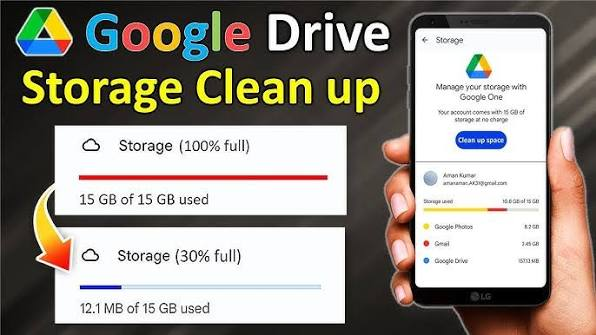
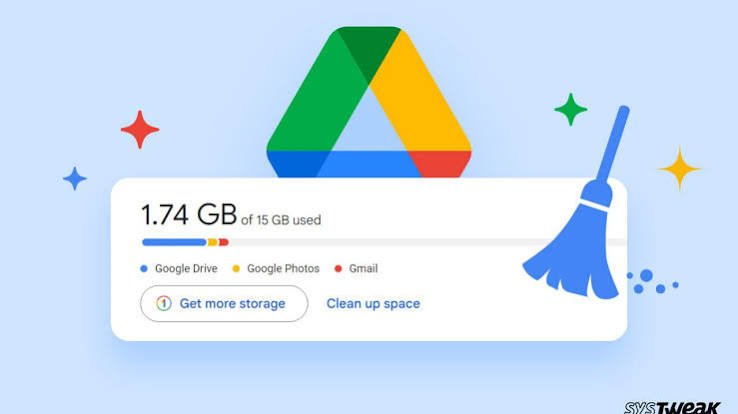
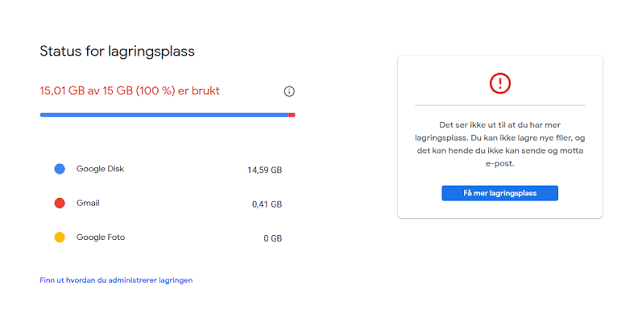
Google Drive storage is shared between three major Google services:
- Google Drive
- Gmail
- Google Photos
This means that even if your Drive itself contains only a few files, thousands of emails with large attachments or high-resolution photos can consume your available storage.
Common reasons your storage fills up include:
- Uploading large videos and files
- Storing duplicate documents
- Keeping unnecessary backups
- Large Gmail attachments
- High-quality photos and videos
- Files remaining in the Trash
- Shared files that you own
Understanding where your storage is being used is the first step toward solving the issue.
How to Check Your Google Storage Usage
Before deleting anything, check how your storage is being used.
To view your storage usage:
- Open Google Drive in your browser.
- Click Storage in the left sidebar.
- Review the files sorted by size.
- You can also check the overall storage breakdown in your Google Account’s storage section.
This helps identify which service is consuming the most space.
Signs Your Google Drive Storage Is Full
You may notice several warning signs, including:
- Unable to upload new files.
- Gmail cannot send or receive emails.
- Google Photos stops backing up images.
- Backup and Sync fails.
- Storage warning notifications appear.
- File synchronization errors occur.
These problems usually disappear after enough storage is freed.
How to Free Up Google Drive Storage
1. Delete Large Files
One of the quickest ways to recover space is by deleting large files you no longer need.
Sort your files by size and remove:
- Old videos
- ZIP archives
- ISO files
- Large presentations
- Unused project files
Always download important files before deleting them if you need a local backup.
2. Empty the Trash
Deleting files does not immediately free storage because they remain in the Trash.
To permanently remove them:
- Open Google Drive.
- Select Trash.
- Click Empty Trash.
Storage is only released after the Trash is emptied.
3. Clean Up Gmail
Gmail attachments can occupy a significant amount of storage.
Search for large emails using:
- larger:10M
- has
Delete unnecessary emails and empty the Gmail Trash and Spam folders afterward.
4. Optimize Google Photos
Photos and videos often consume the most storage.
Consider:
- Deleting blurry or duplicate photos.
- Removing unnecessary videos.
- Deleting screenshots you no longer need.
- Switching to the Storage Saver quality option for future uploads if it meets your needs.
5. Remove Duplicate Files
Duplicate uploads waste valuable space.
Look for:
- Multiple copies of documents
- Duplicate PDFs
- Repeated images
- Backup copies
Deleting duplicates can recover several gigabytes.
6. Delete Old Device Backups
Android device backups stored in Google Drive may become outdated.
Remove backups for devices you no longer use to reclaim storage.
Organize Your Files
Good organization makes storage management easier.
Create folders for:
- Work
- School
- Personal documents
- Photos
- Videos
- Backups
Regularly review these folders and delete outdated files.
Upgrade Your Google Storage
If you frequently run out of space despite cleaning up, upgrading your storage may be the best solution.
Google offers larger storage plans through Google One, which provides additional storage that can be shared with family members, along with other benefits such as customer support and extra features.
Choose a plan based on your storage needs and budget.
Tips to Prevent Google Drive Storage from Filling Up
Follow these best practices to keep your storage under control:
- Delete unnecessary files every month.
- Empty the Trash regularly.
- Remove unwanted Gmail attachments.
- Organize files into folders.
- Delete duplicate uploads.
- Compress large files before uploading.
- Review backups periodically.
- Avoid storing unnecessary videos.
- Monitor storage usage frequently.
- Back up only important data.
These habits can help you avoid storage issues in the future.
Common Mistakes to Avoid
Many users unknowingly waste storage by:
- Forgetting to empty the Trash.
- Keeping thousands of old emails.
- Uploading duplicate files.
- Saving unnecessary videos.
- Ignoring Google Photos storage usage.
- Keeping outdated backups.
Avoiding these mistakes can significantly extend your available storage.
Frequently Asked Questions
Why is my Google Drive full even after deleting files?
Files remain in the Trash until they are permanently deleted. Gmail and Google Photos may also still be using storage.
Does Gmail use Google Drive storage?
Yes. Gmail shares the same storage quota as Google Drive and Google Photos.
Will deleting files from Google Drive affect shared users?
If you own a shared file and delete it, collaborators may lose access. Make sure to transfer ownership if the file is still needed.
Is the 15 GB storage shared?
Yes. The free 15 GB is shared across Google Drive, Gmail, and Google Photos.
Can I recover deleted files?
Files in the Trash can usually be restored until they are permanently removed. Once permanently deleted, recovery may not be possible.
A\lso Read:https://support.google.com/drive/thread/203706694/false-storage-full-warning?hl=en
Conclusion
A full Google Drive account can interrupt file uploads, email delivery, and photo backups, but the problem is usually easy to fix. By identifying large files, cleaning up Gmail, managing Google Photos, removing duplicates, emptying the Trash, and deleting outdated backups, you can recover valuable storage without much effort. Regular maintenance and good file organization will help keep your Google account running smoothly. If your storage needs continue to grow, upgrading to a larger plan through Google One is a convenient long-term solution. With these tips, you can keep your Google Drive organized, efficient, and ready for all your important files.



