

Introduction
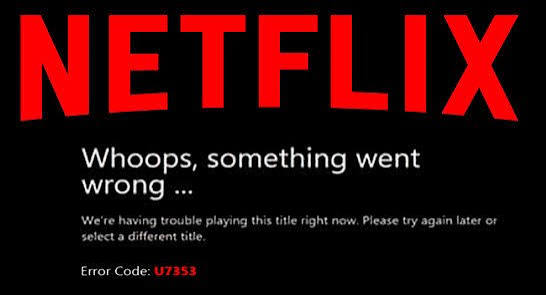
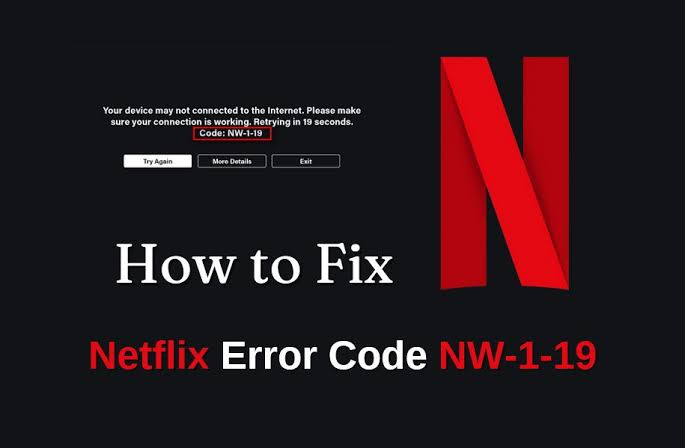
Netflix is one of the world’s most popular streaming platforms, offering thousands of movies, TV shows, documentaries, and original content. While Netflix is generally reliable, users sometimes encounter error codes that interrupt their viewing experience. These error codes can appear on smart TVs, smartphones, tablets, Windows PCs, gaming consoles, or streaming devices. Although they may seem confusing, most Netflix errors are easy to fix with a few troubleshooting steps.
This guide explains what Netflix error codes mean, their common causes, and the best solutions to get Netflix working again.
What Are Netflix Error Codes?
Netflix error codes are messages displayed when the app or website cannot function properly. Each code identifies a specific problem, such as internet connectivity issues, outdated software, corrupted app data, or server-related problems.
Instead of showing a generic error message, Netflix provides unique codes that help users identify the exact issue and apply the correct fix.
Common Causes of Netflix Error Codes
Several factors can trigger Netflix errors, including:
- Weak or unstable internet connection
- Outdated Netflix app
- Corrupted cache or app data
- Device software needing an update
- VPN or proxy interference
- Netflix server outages
- Incorrect DNS or network settings
- Account authentication issues
Understanding the cause makes troubleshooting much easier.
Popular Netflix Error Codes and Their Solutions
1. Error Code NW-2-5
Meaning: Netflix cannot connect
- Restart your modem and router.
- Restart your device.
- Check your internet connection.
- Move closer to the Wi-Fi router.
- Disable VPN or proxy services.
- Try using a wired Ethernet connection if possible.
2. Error Code UI-800-3
Meaning: Corrupted app data is preventing Netflix from loading.
How to Fix:
- Sign out of Netflix.
- Restart your device.
- Clear the Netflix app cache.
- Reinstall the Netflix application.
- Sign in again.
3. Error Code TVQ-ST-103
Meaning: Your device cannot connect to Netflix servers.
How to Fix:
- Restart your streaming device.
- Restart your router.
- Check if Netflix servers are online.
- Ensure your internet connection is stable.
4. Error Code M7111-1331-5059
Meaning: Netflix has detected a VPN or proxy service.
How to Fix:
- Disable your VPN.
- Turn off proxy settings.
- Restart your browser.
- Connect using your regular internet connection.
5. Error Code H7361
Meaning: A Windows browser or Microsoft Store issue is preventing Netflix from working.
How to Fix:
- Update Windows.
- Update Microsoft Edge.
- Clear browser cache.
- Restart your computer.
6. Error Code 100
Meaning: Stored information on the device needs to be refreshed.
How to Fix:
- Sign out of Netflix.
- Restart the device.
- Clear app data.
- Reinstall the app if necessary.
General Troubleshooting Steps
If you encounter an unfamiliar Netflix error code, try these universal solutions.
Restart Your Device
A simple restart often resolves temporary software glitches.
Check Your Internet Connection
Netflix recommends a stable internet connection for uninterrupted streaming.
Suggested speeds:
- 3 Mbps for SD
- 5 Mbps for HD
- 15 Mbps for 4K Ultra HD
Restart Your Router
Power off your modem and router for about one minute before turning them back on.
Update the Netflix App
Running an outdated version of Netflix may cause compatibility problems. Install the latest version from your device’s app store.
Clear Cache and Data
Corrupted temporary files can trigger many Netflix errors.
On Android:
- Open Settings.
- Go to Apps.
- Select Netflix.
- Tap Storage.
- Clear Cache and Clear Data.
Update Your Device
Ensure your smartphone, smart TV, gaming console, or PC is running the latest operating system.
Disable VPN Services
Netflix restricts certain VPN connections. Turning off your VPN often resolves streaming errors.
Reinstall Netflix
If nothing else works:
- Uninstall Netflix.
- Restart your device.
- Download the latest version.
- Sign in again.
Device-Specific Solutions
Smart TVs
- Restart the TV.
- Update the TV firmware.
- Reinstall Netflix.
- Reset Smart Hub if needed.
Android Devices
- Clear cache.
- Update Android.
- Reinstall Netflix.
iPhone and iPad
- Restart the device.
- Update iOS.
- Delete and reinstall Netflix.
Windows PC
- Update Windows.
- Clear browser cache.
- Reset the Netflix app.
- Use the Microsoft Store version if available.
PlayStation and Xbox
- Restart the console.
- Check for system updates.
- Reinstall Netflix.
- Test your network connection.
How to Check if Netflix Is Down
Sometimes the issue is not with your device. Netflix servers may be experiencing outages.
Signs include:
- Multiple devices showing the same error.
- Netflix website not loading.
- Friends reporting similar issues.
- Streaming stops suddenly for many users.
If Netflix is experiencing a server outage, wait until the service is restored.
Tips to Prevent Netflix Errors
Follow these best practices:
- Keep the Netflix app updated.
- Update your device regularly.
- Use a stable internet connection.
- Restart your router occasionally.
- Avoid unofficial VPN services.
- Maintain enough free storage space.
- Clear cache periodically.
- Sign out properly when switching devices.
Frequently Asked Questions
Why does Netflix keep showing error codes?
This usually happens because of internet problems, outdated software, corrupted app data, or temporary server issues.
Can restarting my device fix Netflix errors?
Yes. Many temporary errors disappear after restarting your device and reconnecting to the internet.
Does reinstalling Netflix delete my account?
No. Your Netflix account remains safe. You only need to sign in again after reinstalling the app.
What should I do if none of the fixes work?
Contact Netflix Customer Support and provide the exact error code. This helps the support team diagnose the issue more quickly.
Also Read:https://www.leawo.com/
Conclusion
Netflix error codes may seem frustrating, but they are designed to identify specific problems and make troubleshooting easier. Whether you’re facing NW-2-5, UI-800-3, TVQ-ST-103, or another error, most issues can be resolved by checking your internet connection, updating the app, clearing cached data, or restarting your device. Keeping both your device and Netflix app updated is the best way to enjoy uninterrupted streaming. By following the troubleshooting steps in this guide, you can quickly fix most Netflix error codes and get back to watching your favorite movies and TV shows.