

Introduction
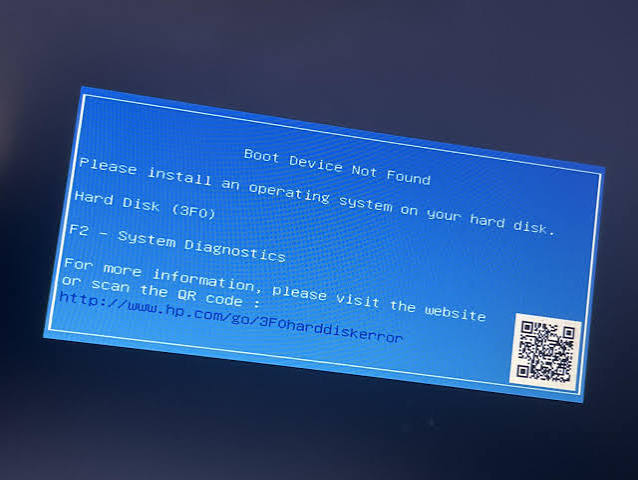
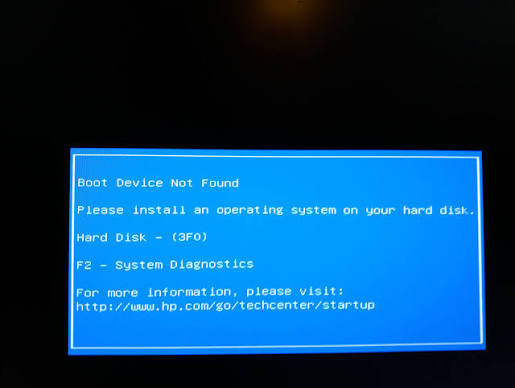
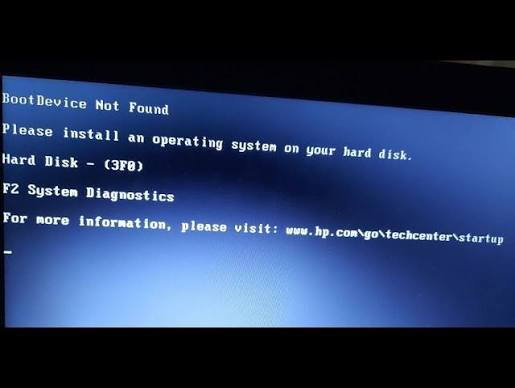
Seeing the “Boot Device Not Found” error when turning on your computer can be alarming. Instead of loading Windows, your PC displays a message indicating that it cannot find a bootable device or operating system. This issue is common on laptops and desktop computers from brands like HP, Dell, Lenovo, Acer, and ASUS.
Fortunately, the error doesn’t always mean your hard drive has failed. In many cases, it can be fixed by adjusting BIOS settings, repairing the boot files, or checking hardware connections. This guide explains what the “Boot Device Not Found” error means, its common causes, and the best ways to fix it.
What Does “Boot Device Not Found” Mean?
A computer needs a storage device—such as an SSD or HDD—that contains the operating system to start properly. When the BIOS or UEFI firmware cannot detect a bootable drive, it displays a “Boot Device Not Found” message.
Common error messages include:
- Boot Device Not Found
- No Bootable Device
- Operating System Not Found
- No Boot Device Available
- Reboot and Select Proper Boot Device
- PXE Boot Error
All of these indicate that the computer cannot locate a valid operating system to boot from.
Common Causes of the Error
Several issues can trigger this error, including:
- Loose or disconnected SSD/HDD
- Incorrect BIOS or UEFI boot order
- Corrupted boot files
- Damaged Windows installation
- Hard drive failure
- Failed Windows update
- Corrupted partition table
- BIOS reset or incorrect BIOS settings
- Malware or disk corruption
Identifying the cause helps determine the appropriate solution.
Fix 1: Restart Your Computer
Sometimes the error is caused by a temporary system glitch.
To restart:
- Turn off the computer.
- Wait about 30 seconds.
- Turn it back on.
If the error still appears, continue with the next steps.
Fix 2: Check BIOS or UEFI Boot Order
An incorrect boot order is one of the most common reasons for this issue.
To check it:
- Restart your computer.
- Press the BIOS key during startup (commonly F2, F10, F12, Esc, or Delete, depending on the manufacturer).
- Open the Boot menu.
- Make sure your Windows SSD or HDD is listed as the first boot device.
- Save the changes and restart.
If the drive is missing, the system may not be detecting it.
Fix 3: Verify That the Drive Is Detected
While in BIOS:
- Look for Storage, Information, or Boot Devices.
- Check whether your SSD or HDD appears in the list.
If the drive isn’t detected:
- Power off the computer.
- Reseat the SSD or HDD if you’re comfortable opening the device.
- For desktop PCs, check both the SATA data and power cables.
- For laptops, ensure the drive is properly connected (if accessible).
If the drive is still not detected, it may be faulty.
Fix 4: Run Windows Startup Repair
If the drive is detected but Windows won’t boot, Startup Repair may help.
You’ll need a Windows 11 installation USB:
- Boot from the USB drive.
- Click Repair your computer.
- Select Troubleshoot.
- Choose Advanced Options.
- Click Startup Repair.
Windows will scan for startup issues and attempt to repair them automatically.
Fix 5: Repair the Boot Configuration
Corrupted boot files can prevent Windows from starting.
From Advanced Options, open Command Prompt and run these commands one at a time:
bootrec /fixmbr
bootrec /fixboot
bootrec /scanos
bootrec /rebuildbcd
Restart the computer after the commands finish.
These commands repair the Master Boot Record (MBR) and rebuild the Boot Configuration Data (BCD).
Fix 6: Check the Hard Drive for Errors
Disk errors can also trigger boot problems.
In Command Prompt, type:
chkdsk C: /f /rReplace C: with your Windows drive letter if it’s different.
The scan may take some time, especially on large drives.
Fix 7: Restore BIOS Default Settings
Incorrect BIOS settings can prevent the system from finding the boot drive.
To reset BIOS:
- Enter BIOS.
- Choose Load Default Settings or Load Optimized Defaults.
- Save the changes.
- Restart the computer.
Fix 8: Disconnect External Devices
Sometimes a USB drive or external hard disk is mistakenly selected as the boot device.
Disconnect:
- USB flash drives
- External hard drives
- Memory cards
- DVDs
Restart the computer and check if Windows loads normally.
Fix 9: Use System Restore
If the error started after installing software, drivers, or updates:
- Boot into Windows Recovery Environment.
- Select System Restore.
- Choose a restore point from before the issue began.
- Follow the instructions.
System Restore won’t delete your personal files but can undo recent system changes.
Fix 10: Check Hard Drive Health
If your drive is making clicking noises, disappearing from BIOS, or frequently causing errors, it may be failing.
Signs of a failing drive include:
- Slow performance
- Frequent crashes
- File corruption
- SMART warnings
- Repeated boot failures
If possible, connect the drive to another computer to back up important files before replacing it.
Fix 11: Reinstall Windows
If none of the previous methods work and the drive is healthy, reinstalling Windows may resolve severe boot corruption.
Before reinstalling:
- Back up important data if possible.
- Create a bootable Windows 11 USB.
- Follow the installation instructions carefully.
A clean installation can restore system functionality but may erase installed applications and settings.
Tips to Prevent Boot Device Errors
To reduce the chances of encountering this error in the future:
- Keep Windows updated.
- Shut down your PC properly.
- Avoid interrupting Windows updates.
- Regularly back up important files.
- Monitor your drive’s health.
- Protect your computer from malware.
- Avoid sudden power loss by using a UPS if possible.
Preventive maintenance can extend the life of your storage device and improve system reliability.
Frequently Asked Questions
What causes the “Boot Device Not Found” error?
The error is usually caused by an undetected storage drive, corrupted boot files, incorrect BIOS settings, or a failing SSD/HDD.
Can I fix this error without reinstalling Windows?
Yes. In many cases, adjusting the boot order, repairing the boot configuration, or using Startup Repair resolves the issue without reinstalling Windows.
Does this error mean my hard drive is broken?
Not always. The drive may simply be disconnected, improperly configured, or affected by corrupted boot files. However, if it isn’t detected in BIOS or shows signs of failure, hardware replacement may be necessary.
How do I know if my SSD has failed?
If the SSD is missing from BIOS, produces repeated boot errors, or fails to work when connected to another computer, it may be defective.
Can malware cause boot issues?
Yes. Certain types of malware can damage boot files or the boot configuration, preventing Windows from starting correctly.
Also Read:https://h30434.www3.hp.com/
Conclusion
The “Boot Device Not Found” error can prevent your computer from starting, but it doesn’t always indicate a serious hardware failure. In many cases, the problem can be resolved by checking the BIOS boot order, ensuring the storage drive is properly connected, repairing corrupted boot files, or using Windows Startup Repair.
If the drive is healthy and detected correctly, the troubleshooting methods in this guide should help restore normal boot functionality. However, if your SSD or HDD has failed, replacing the drive and reinstalling Windows may be the best long-term solution. Regular backups and routine system maintenance can help prevent data loss and reduce the risk of future boot-related problems.



