

Introduction
Sound issues on Windows 11 can be frustrating, especially when you’re trying to watch videos, attend online meetings, play games, or listen to music. If your computer suddenly has no audio, the problem could be related to incorrect settings, outdated drivers, hardware issues, or recent Windows updates. Fortunately, most sound problems can be resolved with a few simple troubleshooting steps.
In this guide, you’ll learn the common causes of Windows 11 sound issues and discover effective solutions to restore audio on your PC.
Why Is Sound Not Working on Windows 11?
There are several reasons why your Windows 11 computer may have no sound. Some of the most common causes include:
- Muted system volume
- Incorrect audio output device
- Outdated or corrupted audio drivers
- Windows audio services stopped
- Faulty speakers or headphones
- Damaged audio cables
- Windows update issues
- Audio enhancements causing conflicts
- Hardware problems
Understanding the cause helps you choose the right fix.
Common Sound Problems
Windows 11 users often experience issues such as:
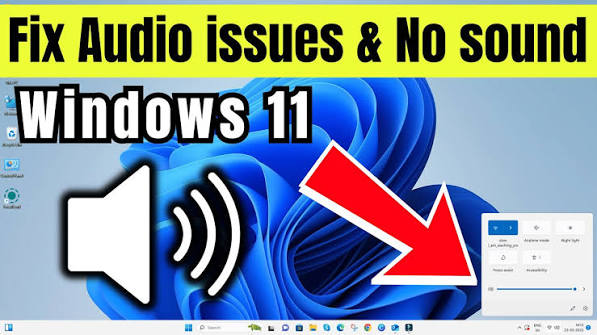
- No sound from speakers
- No audio through headphones
- Crackling or distorted sound
- Low volume
- Audio delays
- Sound stops after a Windows update
- HDMI audio not working
- Microphone works but speakers don’t
- Audio device not detected
Most of these problems can be fixed without professional repair.
Fix 1: Check the Volume Settings
Before trying advanced solutions, make sure the volume isn’t muted.
To check:
- Click the Speaker icon on the taskbar.
- Increase the volume slider.
- Ensure the Mute option isn’t enabled.
Also, check the volume settings inside the application you’re using.
Fix 2: Verify the Correct Output Device
Windows may be sending audio to the wrong device.
To change the output device:
- Click the Speaker icon.
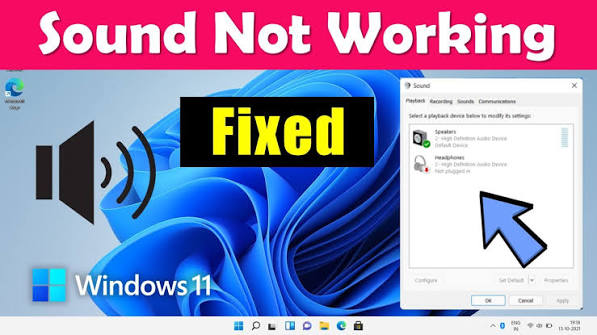
- Select the Sound Output menu.
- Choose your preferred device, such as:
- Laptop Speakers
- USB Headset
- Bluetooth Speaker
- HDMI Audio
Test the sound again after switching devices.
Fix 3: Restart Your Computer
Temporary software glitches can interrupt audio services.
Simply restart your computer and test the sound after Windows loads.
Fix 4: Run the Audio Troubleshooter
Windows 11 includes a built-in troubleshooter that can automatically detect and fix many audio problems.
Steps:
- Open Settings.
- Select System.
- Click Troubleshoot.
- Choose Other Troubleshooters.
- Run the Playing Audio troubleshooter.
Follow the on-screen instructions to apply any recommended fixes.
Fix 5: Update Audio Drivers
Outdated drivers are a leading cause of sound issues.
To update them:
- Right-click the Start button.
- Select Device Manager.
- Expand Sound, Video and Game Controllers.
- Right-click your audio device.
- Choose Update Driver.
- Select Search Automatically for Drivers.
Restart your PC after the update.
Fix 6: Reinstall the Audio Driver
If updating doesn’t solve the problem, reinstall the driver.
Steps:
- Open Device Manager.
- Expand Sound, Video and Game Controllers.
- Right-click your sound device.
- Select Uninstall Device.
- Restart your computer.
Windows 11 will reinstall the appropriate driver automatically.
Fix 7: Restart Windows Audio Services
Audio services may stop unexpectedly.
To restart them:
- Press Windows + R.
- Type services.msc.
- Press Enter.
- Locate Windows Audio.
- Right-click it.
- Select Restart.
Also restart:
- Windows Audio Endpoint Builder
- Remote Procedure Call (RPC)
These services are essential for audio playback.
Fix 8: Disable Audio Enhancements
Audio enhancements sometimes create compatibility issues.
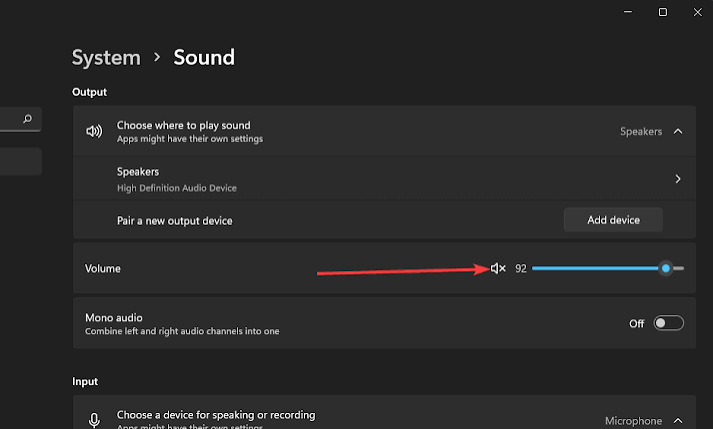
To disable them:
- Open Settings.
- Go to System > Sound.
- Select your output device.
- Find Audio Enhancements.
- Turn them Off.
Check whether the sound works normally afterward.
Fix 9: Check Windows Update
Microsoft frequently releases updates that improve driver compatibility.
To update Windows:
- Open Settings.
- Select Windows Update.
- Click Check for Updates.
- Install available updates.
- Restart your computer.
Fix 10: Test Your Speakers or Headphones
The issue may not be Windows at all.
Try the following:
- Plug headphones into another device.
- Test another pair of speakers.
- Check cable connections.
- Ensure Bluetooth devices are connected correctly.
If another device works, your original hardware may be faulty.
Fix 11: Check Sound Settings
Incorrect sound settings can prevent audio playback.
Open:
Settings > System > Sound
Verify that:
- Correct output device is selected.
- Volume is turned up.
- Balance settings are centered.
- Output isn’t disabled.
Fix 12: Roll Back Recent Windows Updates
If the sound stopped working after installing an update:
- Open Settings.
- Go to Windows Update.
- Select Update History.
- Click Uninstall Updates.
- Remove the latest update if necessary.
Restart the PC and test the sound again.
Fix 13: Use System Restore
If audio worked previously, System Restore can return Windows to an earlier state.
Steps:
- Search for Create a Restore Point.
- Open System Restore.
- Select a restore point created before the issue began.
- Follow the instructions to restore your system.
Your personal files will remain unaffected.
Tips to Prevent Future Sound Problems
To reduce the chances of audio issues:
- Keep Windows 11 updated.
- Install the latest audio drivers from your PC or motherboard manufacturer.
- Avoid downloading drivers from unofficial websites.
- Restart your PC regularly.
- Protect your system from malware.
- Avoid changing advanced sound settings unless necessary.
Regular maintenance helps keep your audio system running smoothly.
Frequently Asked Questions
Why does my Windows 11 PC have no sound?
The issue could be caused by muted volume, incorrect output settings, outdated drivers, disabled audio services, or hardware problems.
Why did sound stop working after a Windows update?
Some updates may introduce temporary driver compatibility issues. Updating drivers or uninstalling the problematic update often resolves the issue.
How do I reinstall my audio driver?
Open Device Manager, uninstall the audio device, and restart your computer. Windows will automatically reinstall the driver.
Can damaged speakers cause no sound?
Yes. Test your speakers or headphones on another device to confirm whether the hardware is working properly.
Does Windows 11 include an audio troubleshooter?
Yes. The built-in Playing Audio Troubleshooter can automatically detect and fix many common sound problems.
Also Read:https://windowsreport.com/
Conclusion
Sound problems on Windows 11 can occur for many reasons, including incorrect settings, outdated drivers, disabled audio services, or hardware issues. The good news is that most audio problems can be fixed by checking your sound output, updating or reinstalling drivers, running the built-in troubleshooter, and ensuring Windows is up to date.
By following the troubleshooting steps in this guide, you can resolve most Windows 11 sound issues and enjoy uninterrupted audio for work, entertainment, gaming, and online communication. If the problem persists after trying all these solutions, it may indicate a hardware fault, and contacting your device manufacturer or a qualified technician may be the next best step.



