

A good webcam can make a big difference in your professional setup. Whether you work from home, attend Zoom meetings, join Microsoft Teams calls, speak with clients, or participate in online interviews, clear video helps you communicate more effectively. While most laptops include a built-in webcam, an external webcam can provide better image quality, improved framing, and useful features such as autofocus and privacy shutters.
In 2026, there are many webcams designed for different types of workers. Some focus on affordability, while others offer 2K or 4K video, automatic framing, better low-light performance, and advanced software controls. Recent webcam guides recommend models such as the Logitech Brio 500, Logitech MX Brio, Anker PowerConf C200, and Insta360 Link series for different professional needs.
Why You Need a Good Webcam for Work
Video meetings have become an important part of modern work. A poor webcam can produce blurry images, incorrect exposure, washed-out colors, or distracting background noise. These problems can make it harder for colleagues and clients to see you clearly.
An external webcam gives you more control over your video. You can position it at eye level, adjust the field of view, and choose a better location than the camera built into your laptop.
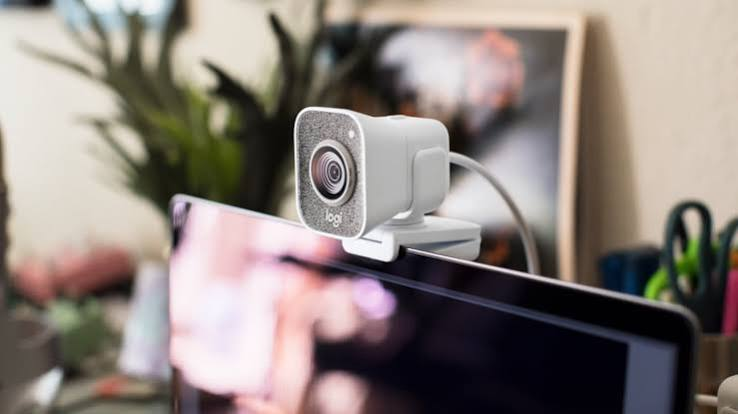
A dedicated webcam is particularly useful if you regularly work from a desktop computer or use a large external monitor.
What to Look for in a Work Webcam
Before buying a webcam, consider several important features.
Resolution
Resolution determines how much visual detail the camera can capture. A 1080p webcam is usually sufficient for everyday meetings. A 2K or 4K webcam can provide additional detail, although the practical benefit depends on the video-call platform and your internet connection.
For most office meetings, 1080p is a sensible starting point. If you also create presentations, recorded videos, or other professional content, investing in a higher-resolution webcam may make more sense.
Autofocus
Autofocus helps keep your face sharp when you move slightly closer to or farther away from the camera.
This is especially useful if you frequently move during presentations or demonstrate documents and objects during meetings.
Low-Light Performance
Home offices do not always have perfect lighting. You may work near a window, under a ceiling light, or in a room with relatively little natural light.
A webcam with good exposure and image processing can produce a more balanced picture in these conditions. However, even a good webcam benefits from having a light source in front of you rather than directly behind you.
Field of View
The field of view determines how much of your surroundings appear in the frame.
A narrower field of view is useful if you want your face and shoulders to dominate the image. A wider field of view can be useful when you need to show a larger area, such as during presentations or demonstrations.
Logitech Brio 500
The Logitech Brio 500 is a popular option for professional video calls. Current 2026 recommendations continue to list it as a strong overall webcam for remote workers. Forbes, for example, selected it as its overall webcam choice, highlighting features such as automatic image adjustments and motion tracking.
It is designed around everyday video conferencing rather than requiring a complicated professional setup.
For someone who spends a large part of the workday in video meetings, the Brio 500 offers a practical balance between image quality, convenience, and useful software features.
Logitech MX Brio
For professionals who want higher image quality, the Logitech MX Brio is another strong option.
It offers 4K video and improved image processing, making it particularly attractive for people who want a sharper and more polished image. Recent 2026 professional webcam guides have highlighted its 4K capabilities and low-light performance.
The MX Brio can be especially useful for professionals who also record presentations, create educational videos, or produce other content outside regular meetings.
Its higher price means it may be unnecessary if you only need a basic camera for occasional calls.
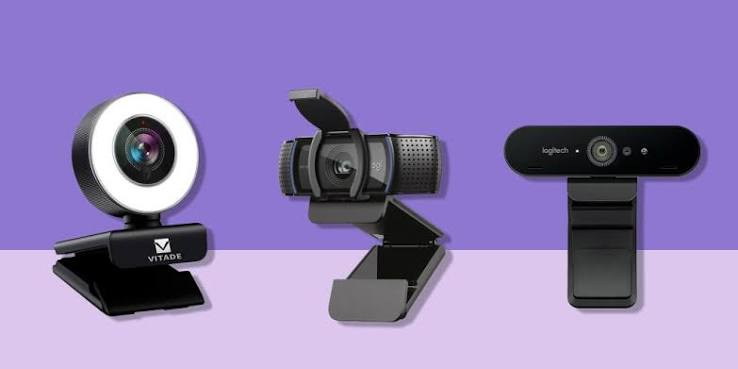
Anker PowerConf C200
If you want a more affordable option, the Anker PowerConf C200 is worth considering.
It offers 2K video and is frequently recommended as a budget-friendly webcam for home offices. Recent reviews have highlighted its image quality and low-light performance for its price category.
The C200 is a good choice for workers who want an improvement over their laptop camera without spending a large amount of money.
It is also compact enough to work well with a monitor or laptop-based setup.
Insta360 Link Series
Professionals who frequently move around while presenting may want a webcam with intelligent tracking.
The Insta360 Link series uses advanced framing features to help keep the presenter visible. This can be useful for teachers, presenters, trainers, and people who regularly stand up during meetings.
Recent 2026 webcam testing has highlighted Insta360 Link models for professional users who want AI-assisted framing and presentation features.
However, these advanced features can make the webcam more expensive than a conventional 1080p model.
1080p vs. 4K for Work
Many people assume that 4K is automatically better for every video meeting. In reality, 1080p is often enough for regular office calls.
The quality you see during a meeting also depends on the platform, internet connection, lighting, and the screen used by the person watching you.
A 4K webcam becomes more useful if you record videos, crop your footage, create presentations, or want maximum image detail.
For ordinary Zoom or Teams meetings, spending extra money on 4K may not be necessary.
Built-In Microphone
Many webcams include microphones. This can be convenient because you do not need a separate microphone for basic calls.
However, webcam microphones are not always the best choice for professional audio. If you regularly participate in important meetings, a dedicated headset or microphone may provide clearer sound.
Remember that good video is only half of a successful video call. Your colleagues need to hear you clearly as well.
Privacy Features
Privacy is another important consideration for a work webcam.
A physical privacy shutter lets you cover the camera when it is not being used. This can provide extra peace of mind, especially if the webcam remains connected to your computer throughout the day.
You should also check your computer’s camera permissions and make sure applications only have access when necessary.
Lighting Can Improve Any Webcam
You do not necessarily need an expensive webcam to get better-looking video.
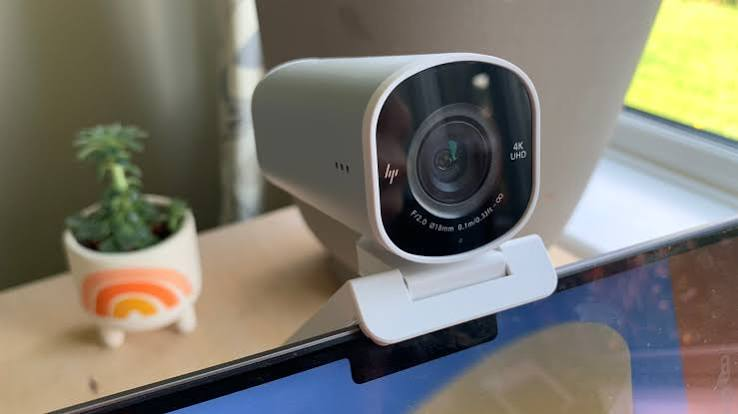
Position a light source in front of you rather than directly behind you. Sitting facing a window can provide useful natural light, although direct sunlight can sometimes be too strong.
A small desk light can also improve your image considerably.
Good positioning and lighting can sometimes make a bigger difference than upgrading from one expensive webcam to another.
How to Choose the Right Webcam
Your ideal webcam depends on how you work.
If you mainly attend everyday meetings, a reliable 1080p webcam such as the Logitech Brio 500 can be more than enough.
If you want sharper video and also record professional content, a 4K model such as the Logitech MX Brio may be a better investment.
For budget-conscious workers, the Anker PowerConf C200 provides a strong balance between price and image quality.
If you regularly move around during presentations, an AI-tracking webcam from the Insta360 Link family may be more useful.
Also Read:https://www.nytimes.com/
Final Thoughts
The best webcam for work should match your actual needs rather than simply having the highest resolution or the most expensive features.
For everyday remote work, 1080p provides plenty of quality for most meetings. Higher-resolution models become more attractive when you create videos, give presentations, or want additional flexibility.
The Logitech Brio 500 is a strong everyday choice, while the Logitech MX Brio is better suited to professionals who want premium image quality. The Anker PowerConf C200 is an attractive budget option, and Insta360 Link models are worth considering for people who need intelligent framing.
Before buying, think about your lighting, workspace, meeting software, budget, and how often you use video calls. With the right webcam and a well-positioned light, you can create a clearer and more professional-looking work setup without making the process complicated.



