

Introduction
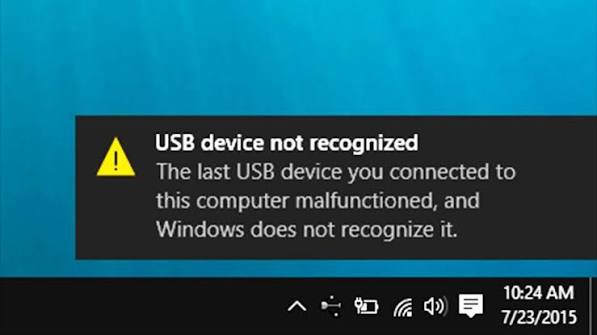
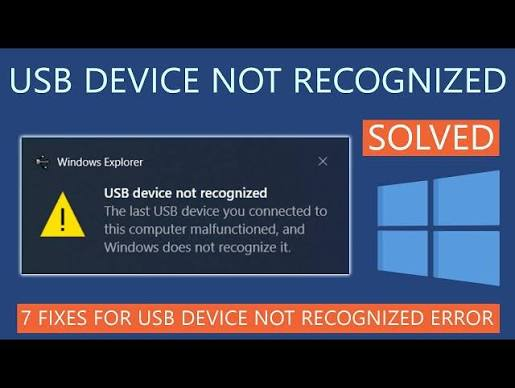
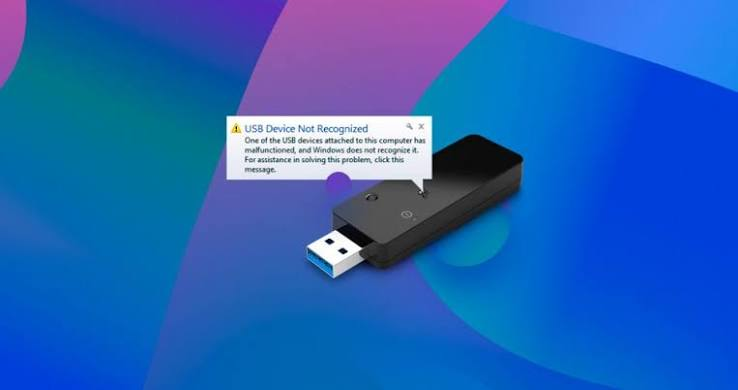
The “USB Device Not Recognized” error is one of the most common problems faced by Windows users. It usually appears when you connect a USB flash drive, external hard drive, keyboard, mouse, printer, smartphone, or another USB device to your computer. Instead of working normally, Windows displays a notification saying “USB Device Not Recognized. The last USB device you connected to this computer malfunctioned, and Windows does not recognize it.”
This issue can occur in both Windows 10 and Windows 11 and may be caused by hardware faults, outdated drivers, damaged USB ports, corrupted system files, or power management settings. Fortunately, most USB recognition problems can be fixed without replacing your device.
This guide explains the common causes of the error and provides step-by-step solutions to help you get your USB device working again.
What Does “USB Device Not Recognized” Mean?
When you connect a USB device, Windows automatically detects it, installs the required drivers, and makes it available for use. If Windows cannot identify the device or communicate with it correctly, it displays the “USB Device Not Recognized” error.
This issue may affect:
- USB flash drives
- External hard drives
- USB keyboards
- USB mice
- Smartphones
- Printers
- USB headsets
- Webcams
- Game controllers
Common Causes of the Error
Several factors can prevent Windows from recognising a USB device.
1. Faulty USB Port
A damaged or loose USB port may prevent proper communication between the computer and the device.
2. Damaged USB Cable
If the USB cable is broken or worn out, Windows may fail to detect the connected device.
3. Outdated or Corrupted Drivers
USB drivers allow Windows to communicate with hardware. Corrupted or outdated drivers are a common cause of recognition errors.
4. Power Management Settings
Windows may disable USB ports to save power, preventing connected devices from functioning correctly.
5. Corrupted System Files
Missing or damaged Windows system files can interfere with USB device detection.
6. Hardware Failure
The USB device itself may be defective and unable to communicate with the computer.
How to Fix USB Device Not Recognized
Try the following solutions one by one.
Method 1: Restart Your Computer
A simple restart can refresh Windows and reload USB drivers.
Steps:
- Save your work.
- Restart your PC.
- Reconnect the USB device after Windows starts.
If the device is recognised, no further troubleshooting is needed.
Method 2: Try a Different USB Port
Sometimes the USB port is the problem.
Steps:
- Disconnect the USB device.
- Plug it into another USB port.
- If available, test both USB 2.0 and USB 3.0 ports.
If it works in another port, the original port may be damaged.
Method 3: Test the Device on Another Computer
Connect the USB device to another Windows computer.
- If it works, the problem is likely with your PC.
- If it does not work, the USB device may be faulty.
Method 4: Update USB Drivers
Updating drivers often fixes recognition issues.
Steps:
- Right-click the Start button.
- Open Device Manager.
- Expand Universal Serial Bus controllers.
- Right-click the problematic USB device.
- Select Update driver.
- Choose Search automatically for drivers.
Restart your computer after the update.
Method 5: Reinstall USB Drivers
If updating does not help, reinstall the drivers.
Steps:
- Open Device Manager.
- Locate the USB device with the warning icon.
- Right-click it.
- Select Uninstall device.
- Restart your computer.
Windows will automatically reinstall the driver.
Method 6: Disconnect Other USB Devices
Too many connected USB devices may overload the controller.
Disconnect:
- External hard drives
- USB hubs
- Printers
- Cameras
- Other unnecessary accessories
Then reconnect only the device causing the problem.
Method 7: Disable USB Power Saving
Windows sometimes turns off USB ports to save energy.
Steps:
- Open Device Manager.
- Expand Universal Serial Bus controllers.
- Double-click each USB Root Hub.
- Open the Power Management tab.
- Uncheck Allow the computer to turn off this device to save power.
- Click OK.
Restart your computer.
Method 8: Run Windows Troubleshooter
Windows includes built-in troubleshooting tools.
Steps:
- Open Settings.
- Go to System > Troubleshoot.
- Select Other troubleshooters.
- Run the appropriate hardware or device troubleshooter if available.
- Follow the on-screen instructions.
Method 9: Install Windows Updates
Microsoft regularly releases updates that improve hardware compatibility.
Steps:
- Open Settings.
- Select Windows Update.
- Click Check for updates.
- Install all available updates.
- Restart your PC.
Method 10: Check for Corrupted System Files
Windows includes the System File Checker tool.
Steps:
- Open Command Prompt as Administrator.
- Type:
sfc /scannow- Press Enter.
- Wait for the scan to complete.
- Restart your computer.
This tool repairs damaged Windows system files automatically.
Preventing USB Recognition Problems
Follow these tips to reduce future USB issues:
- Safely eject USB devices before unplugging them.
- Keep Windows updated.
- Update device drivers regularly.
- Avoid using damaged USB cables.
- Use high-quality USB hubs if multiple devices are needed.
- Keep USB ports clean and free of dust.
- Avoid forcing USB connectors into ports.
When Should You Replace the USB Device?
If you have tried all troubleshooting methods and the device still is not recognised, replacement may be necessary.
Consider replacing the device if:
- It is not detected on multiple computers.
- The USB connector is physically damaged.
- The device disconnects repeatedly.
- It becomes unusually hot during use.
- It makes unusual noises (for external drives).
Always back up important data as soon as possible if the device still works intermittently.
Common Mistakes to Avoid
Avoid these common troubleshooting mistakes:
- Pulling out a USB device without safely ejecting it.
- Ignoring Windows Update notifications.
- Installing drivers from untrusted websites.
- Using damaged or low-quality USB cables.
- Connecting high-power devices to unpowered USB hubs.
- Assuming the USB device is faulty before testing it on another computer.
Also Read:https://superuser.com/
Conclusion
The “USB Device Not Recognized” error in Windows can be frustrating, but it is often easy to resolve with the right troubleshooting steps. Common fixes include restarting your computer, trying another USB port, updating or reinstalling drivers, adjusting power management settings, and checking for Windows updates. In many cases, these simple solutions restore normal USB functionality without the need for professional repair.
Regular maintenance, such as keeping Windows updated, using reliable USB accessories, and safely ejecting devices before disconnecting them, can help prevent similar problems in the future. By following the methods outlined in this guide, you can quickly diagnose the issue, restore your USB device, and keep your Windows computer running smoothly.



