

Introduction
Over time, every Windows computer collects unnecessary files that take up valuable storage space. These files include temporary files, cached data, old Windows update files, recycle bin contents, thumbnails, and system logs. While many of these files are harmless, they can accumulate over weeks or months, reducing available disk space and sometimes affecting your computer’s performance.
Fortunately, Windows includes a built-in utility called Disk Cleanup that helps users safely remove unnecessary files without installing third-party software. Whether you are running Windows 10 or Windows 11, Disk Cleanup is one of the easiest tools for maintaining your computer. Regularly using it can free several gigabytes of storage, improve system responsiveness, and keep your PC running efficiently.
This guide explains what Disk Cleanup is, why it is important, and how to use it effectively.
What Is Disk Cleanup?
Disk Cleanup is a free utility built into Microsoft Windows. It scans your storage drive for unnecessary files and allows you to delete them safely.
The tool can remove various types of files, including:
- Temporary Windows files
- Temporary Internet files
- Downloaded program files
- Delivery Optimization files
- DirectX Shader Cache
- Windows Update Cleanup files
- Recycle Bin contents
- Thumbnails
- Error reporting files
- Temporary installation files
Removing these files helps recover storage space without affecting your personal documents, photos, or installed programs.
Why Is Disk Cleanup Important?
Using Disk Cleanup regularly provides several benefits.
1. Frees Up Storage Space
As files accumulate, your hard drive or SSD becomes crowded. Disk Cleanup removes unnecessary files and creates more available storage.
2. Improves System Performance
Although Disk Cleanup does not directly increase processing power, having sufficient free storage allows Windows to work more efficiently.
3. Removes Unwanted Temporary Files
Many applications leave behind temporary files after updates or installations. Disk Cleanup removes these safely.
4. Deletes Old Windows Update Files
Windows stores previous update files that may no longer be needed. Removing them can recover several gigabytes of storage.
5. Makes Future Updates Easier
Having enough free space helps Windows install updates without storage-related errors.
How to Open Disk Cleanup
Opening Disk Cleanup is simple.
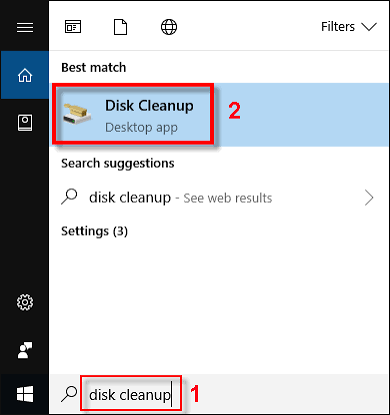
Method 1: Search Menu
- Click the Start button.
- Type Disk Cleanup.
- Click the application.
Method 2: Run Command
- Press Windows + R.
- Type:
cleanmgr- Press Enter.
The Disk Cleanup utility will open.
How to Use Disk Cleanup
Follow these simple steps.
Step 1: Select the Drive
If prompted, choose your Windows drive, usually C:.
Click OK.
Disk Cleanup will begin scanning your computer.
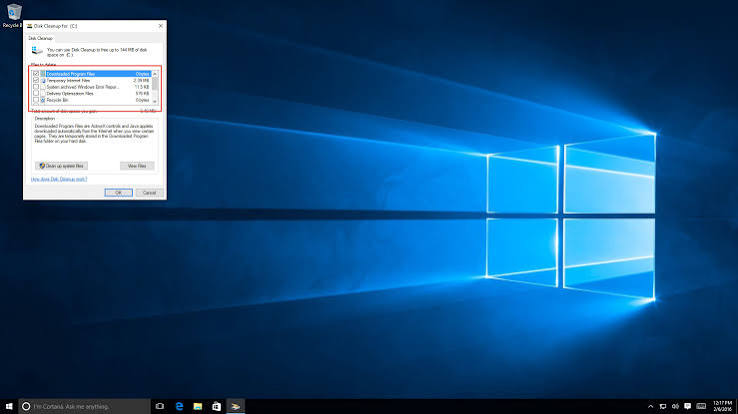
Step 2: Review File Categories
After scanning, you will see a list of file categories.
Common options include:
- Temporary files
- Recycle Bin
- Temporary Internet Files
- Delivery Optimization Files
- DirectX Shader Cache
- Thumbnails
- Downloaded Program Files
Each category shows how much storage it occupies.
Step 3: Select Items to Remove
Tick the boxes next to the file types you wish to delete.
Most users can safely remove:
- Temporary files
- Temporary Internet Files
- Delivery Optimization Files
- DirectX Shader Cache
- Thumbnails
- Recycle Bin contents
If unsure, leave the option unchecked.
Step 4: Delete the Files
Click OK.
Then select Delete Files.
Windows will safely remove the selected files.
Clean Up System Files
For a deeper cleanup:
- Open Disk Cleanup.
- Select your drive.
- Click Clean up system files.
- Allow Windows to scan again.
Additional options may appear, including:
- Windows Update Cleanup
- Device driver packages
- Previous Windows installations
- System error memory dump files
These files can occupy several gigabytes.
Files That Are Safe to Delete
Most of these can be safely removed:
- Temporary files
- Temporary Internet Files
- Delivery Optimization Files
- Thumbnails
- Windows Error Reporting files
- Recycle Bin contents
- DirectX Shader Cache
- Downloaded Program Files
Windows recreates many of these files automatically when needed.
Files You Should Be Careful With
Some options require attention.
Downloads Folder
If shown, avoid deleting it unless you no longer need the files.
Previous Windows Installation
Deleting this removes your ability to roll back to an earlier version of Windows. Only delete it if you are happy with your current installation.
Recycle Bin
Check the contents before emptying it to ensure you do not permanently delete important files.
How Often Should You Run Disk Cleanup?
The ideal frequency depends on how you use your computer.
General recommendations:
- Home users: once each month
- Office users: every two to four weeks
- Gamers: every two weeks
- Video editors: weekly
- Computers with limited storage: whenever free space becomes low
Regular maintenance prevents unnecessary storage issues.
Disk Cleanup vs Storage Sense
Windows also includes Storage Sense.
Disk Cleanup
- Manual operation
- Greater control
- Useful for occasional maintenance
- Removes system files
Storage Sense
- Automatic cleanup
- Runs in the background
- Removes temporary files automatically
- Can empty the Recycle Bin on a schedule
Many users enable Storage Sense while still using Disk Cleanup occasionally for a more thorough clean.
Additional Ways to Free Disk Space
Besides Disk Cleanup, you can also:
- Uninstall unused software.
- Delete duplicate files.
- Move large files to external storage.
- Store photos in cloud storage.
- Remove old downloads.
- Empty the Recycle Bin regularly.
- Delete unnecessary videos.
- Compress large folders if appropriate.
These steps can significantly increase available storage.
Common Mistakes to Avoid
Avoid these common errors:
- Deleting important personal files accidentally.
- Removing files from unknown system folders.
- Interrupting Disk Cleanup during the process.
- Using unreliable third-party cleaning software.
- Deleting previous Windows installations without understanding the consequences.
- Ignoring storage warnings until the drive is almost full.
Windows’ built-in tools are generally the safest option.
Tips to Keep Your Windows PC Running Smoothly
To maintain good performance:
- Keep Windows updated.
- Run Disk Cleanup regularly.
- Enable Storage Sense.
- Scan for malware.
- Remove unused applications.
- Keep at least 15–20% of your drive free.
- Restart your PC occasionally.
- Back up important files before major cleanups.
These habits can improve both performance and reliability.
Also Read:https://petri.com/
Conclusion
Disk Cleanup is one of the most useful built-in maintenance tools available in Windows. It helps remove unnecessary files, recover valuable storage space, and improve overall system efficiency without requiring additional software. Whether your computer is running low on space or you simply want to keep it organised, using Disk Cleanup regularly is a simple and effective solution.
By combining Disk Cleanup with good maintenance habits—such as enabling Storage Sense, uninstalling unused programs, keeping Windows updated, and regularly backing up important files—you can ensure your PC remains fast, stable, and ready for everyday tasks. A few minutes of routine cleanup each month can make a noticeable difference in your computer’s performance and longevity.



