

Introduction
Microsoft Excel is one of the most powerful spreadsheet applications used worldwide for organizing, analyzing, and managing data. Whether you’re a student, business owner, accountant, or office professional, learning Excel formulas can save time, reduce errors, and improve productivity. Formulas allow users to perform calculations, automate repetitive tasks, and extract meaningful insights from large datasets.
Excel formulas are at the heart of the software’s functionality. They can perform everything from simple arithmetic to advanced financial analysis and data lookups. Understanding how formulas work is an essential skill for anyone who works with spreadsheets.
In this guide, you’ll learn what Excel formulas are, how they work, the most commonly used formulas, practical examples, and tips to improve your Excel skills.
What Are Excel Formulas?
An Excel formula is an expression that performs calculations using numbers, cell references, operators, and built-in functions. Every formula begins with an equals sign (=), telling Excel that the cell contains a calculation rather than plain text.
For example:
=5+10returns 15=A1+B1adds the values in cells A1 and B1=SUM(A1:A10)adds all numbers from A1 to A10
Formulas update automatically whenever the referenced data changes, making Excel an efficient tool for dynamic calculations.
Why Excel Formulas Are Important
Learning Excel formulas provides several advantages:
- Automates repetitive calculations
- Reduces manual errors
- Saves valuable time
- Simplifies complex data analysis
- Improves business reporting
- Supports budgeting and forecasting
- Helps organize large datasets
- Increases workplace productivity
Whether you’re managing expenses or analyzing sales, formulas make Excel far more powerful than a simple table.
Understanding Formula Components
Most Excel formulas include the following elements:
1. Cell References
Instead of entering numbers directly, Excel formulas often use cell references.
Example:
=A1+B1
If the value in A1 changes, the formula updates automatically.
2. Operators
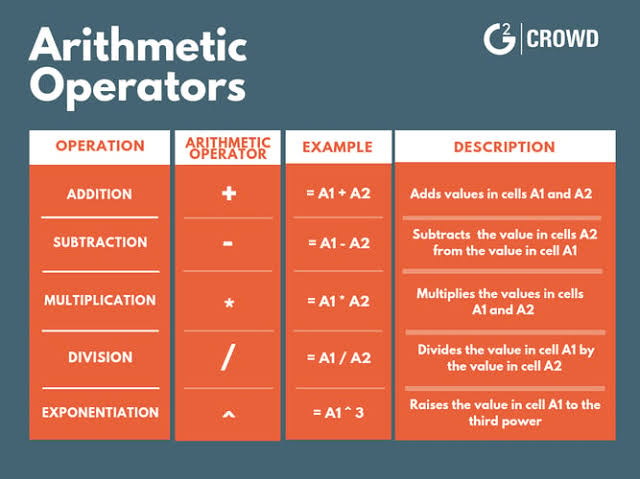
Excel supports several mathematical operators.
| Operator | Purpose |
|---|---|
| + | Addition |
| – | Subtraction |
| * | Multiplication |
| / | Division |
| ^ | Exponent |
Example:
=(A1+B1)*2
3. Functions
Functions are built-in formulas designed for specific tasks.
Example:
=AVERAGE(B2:B20)
This calculates the average of all numbers between B2 and B20.
Most Common Excel Formulas
1. SUM Formula
The SUM function adds numbers together.
Example:
=SUM(A1:A10)
This formula calculates the total of all values from A1 to A10.
Common uses:
- Sales totals
- Expense calculations
- Budget summaries
2. AVERAGE Formula
AVERAGE calculates the mean value.
Example:
=AVERAGE(B1:B12)
Useful for:
- Student grades
- Monthly revenue
- Performance analysis
3. COUNT Formula
COUNT counts cells containing numbers.
Example:
=COUNT(C1:C100)
Useful for tracking records and entries.
4. COUNTA Formula
COUNTA counts non-empty cells.
Example:
=COUNTA(A1:A20)
This includes both numbers and text.
5. MAX Formula
Finds the highest value.
Example:
=MAX(A1:A50)
Useful for identifying top sales or highest scores.
6. MIN Formula
Returns the smallest value.
Example:
=MIN(A1:A50)
Helpful for finding minimum prices or lowest scores.
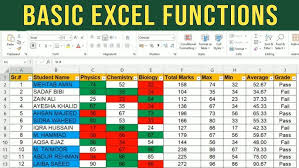
7. IF Formula
The IF function performs logical tests.
Example:
=IF(B2>=50,"Pass","Fail")
If the value in B2 is 50 or greater, Excel displays Pass; otherwise, it displays Fail.
8. VLOOKUP Formula
VLOOKUP searches for information in tables.
Example:
=VLOOKUP(A2,D2:F20,2,FALSE)
Common uses include:
- Product pricing
- Employee records
- Inventory management
9. XLOOKUP Formula
XLOOKUP is a modern replacement for VLOOKUP.
Advantages include:
- Searches left and right
- More accurate
- Easier to use
- Better error handling
10. CONCAT Formula
Combines text from multiple cells.
Example:
=CONCAT(A2," ",B2)
This joins a first name and last name into one cell.
11. LEFT, RIGHT, and MID
These text functions extract characters.
Examples:
=LEFT(A2,3)=RIGHT(A2,4)=MID(A2,2,5)
Useful for cleaning and formatting data.
12. TODAY Formula
Displays the current date.
Example:
=TODAY()
Automatically updates every day.
13. NOW Formula
Returns the current date and time.
Example:
=NOW()
Useful for timestamps and tracking updates.
14. ROUND Formula
Rounds numbers to a specified number of decimal places.
Example:
=ROUND(A2,2)
Ideal for financial reports and invoices.
15. IFERROR Formula
Handles formula errors gracefully.
Example:
=IFERROR(A2/B2,"Error")
Instead of showing an error like #DIV/0!, Excel displays “Error.”
Absolute vs. Relative References
Excel supports two types of references:
Relative Reference
=A1+B1
Changes automatically when copied.
Absolute Reference
=$A$1+B1
The $ symbol locks the reference so it doesn’t change when copied.
Absolute references are useful for tax rates, constants, or fixed values.
Tips for Writing Better Excel Formulas
- Keep formulas simple whenever possible.
- Use descriptive column headings.
- Avoid hardcoding values into formulas.
- Double-check parentheses.
- Test formulas with sample data.
- Use named ranges for large spreadsheets.
- Break complex formulas into smaller parts.
- Use IFERROR to improve readability.
- Format cells correctly for numbers, dates, and percentages.
Common Formula Errors
#DIV/0!
Occurs when dividing by zero.
#VALUE!
Happens when Excel encounters the wrong data type.
#NAME?
Usually caused by misspelled function names.
#REF!
Appears when a referenced cell has been deleted.
#N/A
Often occurs when lookup functions cannot find a matching value.
Understanding these errors makes troubleshooting much easier.
Real-World Uses of Excel Formulas
Excel formulas are used across many industries.
Business
- Sales reports
- Profit analysis
- Budget planning
Finance
- Loan calculations
- Investment tracking
- Expense management
Education
- Grade calculations
- Attendance tracking
- Student performance analysis
Human Resources
- Payroll calculations
- Employee databases
- Leave tracking
Inventory Management
- Stock monitoring
- Product pricing
- Purchase orders
Keyboard Shortcuts That Improve Productivity
Some useful Excel shortcuts include:
- Ctrl + C – Copy
- Ctrl + V – Paste
- Ctrl + Z – Undo
- Ctrl + S – Save
- F2 – Edit active cell
- Ctrl + Arrow Keys – Move quickly through data
- Ctrl + Shift + L – Apply or remove filters
- Alt + = – Automatically insert the SUM formula
Learning shortcuts can significantly speed up your workflow.
Best Practices for Excel Users
To get the most out of Excel:
- Organize data into tables.
- Use consistent formatting.
- Label columns clearly.
- Keep formulas separate from raw data.
- Regularly back up important files.
- Validate data to reduce input errors.
- Protect worksheets containing critical formulas.
These practices make spreadsheets easier to maintain and share.
Also Read:https://www.exceldemy.com/microsoft-excel-formulas-functions-cheat-sheet/
Conclusion
Excel formulas are essential tools for anyone working with data. From simple calculations like SUM and AVERAGE to advanced functions such as IF, VLOOKUP, and XLOOKUP, formulas help automate tasks, improve accuracy, and save time. Whether you’re creating budgets, tracking sales, analyzing performance, or managing business records, mastering Excel formulas will make your work faster and more efficient.
By practicing the formulas covered in this guide and applying them to real-world projects, you’ll build confidence in using Microsoft Excel and unlock its full potential as one of the most powerful productivity tools available.



