

Introduction
The Blue Screen of Death (BSOD) is one of the most frustrating errors Windows users can encounter. It appears when the operating system detects a critical problem that prevents it from running safely. Instead of continuing to operate with the risk of data corruption, Windows stops and displays a blue error screen before restarting.
Although a blue screen can seem alarming, it does not always mean your computer is permanently damaged. In many cases, the issue can be resolved by updating drivers, repairing system files, removing faulty software, or fixing hardware problems. This guide explains the common causes of BSOD errors and provides step-by-step solutions to help you restore your Windows PC.
What Is a Blue Screen Error?
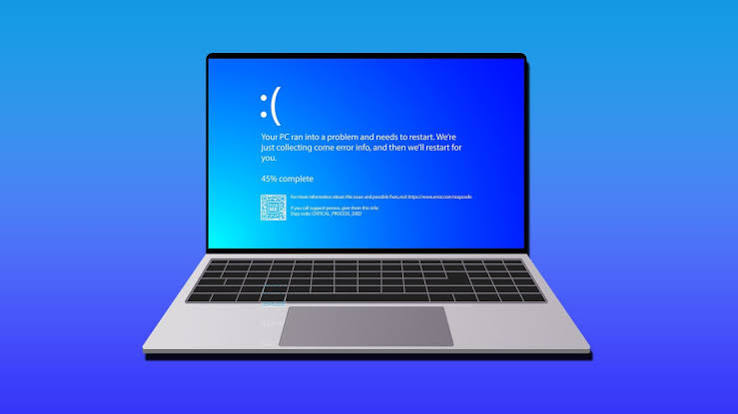
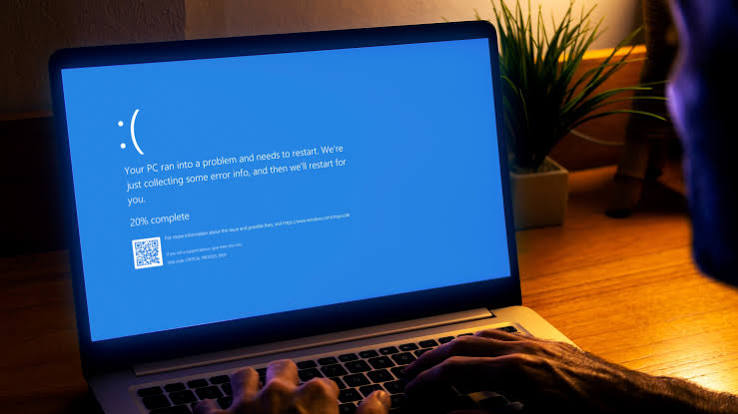
A Blue Screen of Death is a system crash that occurs when Windows encounters a serious error it cannot recover from. When this happens, the operating system stops running and displays a blue screen with an error message or stop code.
Common stop codes include:
- CRITICAL_PROCESS_DIED
- MEMORY_MANAGEMENT
- IRQL_NOT_LESS_OR_EQUAL
- PAGE_FAULT_IN_NONPAGED_AREA
- SYSTEM_SERVICE_EXCEPTION
- DRIVER_POWER_STATE_FAILURE
These codes help identify the source of the problem.
Common Causes of BSOD
Several issues can trigger a blue screen, including:
- Outdated or corrupted device drivers
- Faulty RAM
- Damaged system files
- Hard drive or SSD errors
- Overheating hardware
- Incompatible software
- Malware infections
- Failed Windows updates
- Hardware failures
- Overclocking system components
Identifying the cause is the first step toward fixing the problem.
Step 1: Restart Your Computer
If the blue screen appears only once, restart your computer. Temporary software conflicts or system glitches can occasionally cause a one-time crash.
If the problem continues, proceed with the following troubleshooting steps.
Step 2: Note the Stop Code
Before your PC restarts, write down the stop code displayed on the blue screen. This information can help identify the exact cause of the error and guide your troubleshooting efforts.
Step 3: Boot into Safe Mode
If Windows repeatedly crashes, start your computer in Safe Mode. Safe Mode loads only essential drivers and services, making it easier to diagnose problems.
To enter Safe Mode:
- Open Windows Recovery Environment.
- Select Troubleshoot.
- Choose Advanced Options.
- Click Startup Settings.
- Restart your PC.
- Press the key for Safe Mode.
Once in Safe Mode, begin troubleshooting.
Step 4: Update Device Drivers
Outdated or damaged drivers are one of the leading causes of BSOD errors.
Update drivers for:
- Graphics card
- Network adapter
- Storage controller
- Audio devices
- Chipset
- Printer and USB devices
Use Device Manager or download the latest drivers from your hardware manufacturer’s official website.
Step 5: Install Windows Updates
Microsoft regularly releases updates that fix bugs and improve system stability.
To check for updates:
- Open Settings.
- Select Windows Update.
- Click Check for Updates.
- Install all available updates.
- Restart your computer.
Keeping Windows updated reduces compatibility issues and improves security.
Step 6: Scan for Corrupted System Files
Corrupted Windows files can cause frequent crashes.
Use the System File Checker tool:
- Open Command Prompt as Administrator.
- Run the command:
sfc /scannowWait for the scan to complete. Windows will automatically repair damaged system files when possible.
You can also run:
DISM /Online /Cleanup-Image /RestoreHealthThis command repairs the Windows image used by the operating system.
Step 7: Check Your Hard Drive
Disk errors may also trigger blue screen crashes.
Run the following command:
chkdsk /f /rWindows may ask to scan the drive during the next restart. Allow the process to finish completely.
Step 8: Test Your RAM
Faulty memory modules often cause BSOD errors.
Use Windows Memory Diagnostic:
- Press Windows + R.
- Type mdsched.exe.
- Restart your PC.
- Allow Windows to test your memory.
If errors are detected, replacing the faulty RAM may solve the problem.
Step 9: Remove Recently Installed Software
If the blue screen started after installing new software, uninstall the application to see if the issue is resolved.
Problematic software may include:
- Antivirus programs
- Hardware utilities
- Driver update tools
- System optimization software
Restart your PC after uninstalling the program.
Step 10: Scan for Malware
Some viruses and malware can damage Windows files and cause system crashes.
Run a Full Scan using Windows Security or another trusted antivirus program. Remove any detected threats before restarting your computer.
Step 11: Monitor System Temperature
Overheating can lead to unexpected crashes.
Check for:
- Dust buildup inside the PC
- Blocked air vents
- Faulty cooling fans
- High CPU or GPU temperatures
Cleaning your computer and improving airflow can prevent overheating-related BSOD errors.
Step 12: Disconnect External Devices
External hardware may sometimes cause driver conflicts.
Temporarily disconnect:
- USB drives
- External hard disks
- Printers
- Webcams
- Gaming controllers
Restart your computer and reconnect devices one at a time to identify the faulty hardware.
Step 13: Perform System Restore
If the problem began recently, System Restore may return Windows to a stable state without affecting personal files.
Choose a restore point created before the blue screen started occurring.
Step 14: Reset Windows
If none of the previous solutions work, resetting Windows may resolve persistent software-related issues.
Windows allows you to:
- Keep personal files
- Remove everything for a completely fresh installation
Back up important data before performing a reset.
Tips to Prevent Future BSOD Errors
Reduce the risk of future blue screens by following these best practices:
- Install Windows updates regularly.
- Keep device drivers updated.
- Avoid downloading software from unknown websites.
- Use reliable antivirus software.
- Do not overclock hardware unless necessary.
- Monitor hardware temperatures.
- Clean dust from your computer.
- Back up important files regularly.
- Replace failing hardware promptly.
Preventive maintenance can significantly improve system stability.
When to Seek Professional Help
Consider contacting a technician if:
- Blue screens continue after trying all troubleshooting steps.
- Your PC fails to boot.
- Hardware components appear damaged.
- Data recovery is required.
- The system crashes immediately after startup.
Professional diagnostics can identify hardware failures that software tools cannot fix.
Also Read;https://ugetfix.com/
Conclusion
The Blue Screen of Death can interrupt your work and seem intimidating, but it is often fixable with careful troubleshooting. Begin by identifying the stop code, booting into Safe Mode, updating drivers, repairing system files, checking your storage drive and memory, and installing the latest Windows updates. If software issues are ruled out, inspect your hardware for overheating or failing components.
Regular maintenance, strong security practices, and timely updates are the best ways to prevent future BSOD errors. By following the steps in this guide, you can improve your computer’s stability, reduce crashes, and keep your Windows PC running smoothly.



