

Windows creates temporary files every day to help programs run faster and store short-term data. These files are known as temporary files or temp files. While they are useful during normal computer operation, they often remain on your hard drive after they are no longer needed. Over time, thousands of unnecessary temp files can accumulate, taking up valuable storage space and slowing down your PC.
Regularly clearing Windows temp files is one of the easiest ways to improve system performance, free up disk space, and reduce clutter. This guide explains what temp files are, why you should remove them, and the safest methods to clear them.
What Are Windows Temp Files?
Temporary files are small files created by Windows and installed applications while they perform specific tasks. These files may include:
- Installation files
- Cached data
- Error logs
- Browser cache
- Update files
- Application backup files
Normally, these files should be deleted automatically when they are no longer needed. However, due to unexpected shutdowns, software crashes, or poor application management, many temporary files remain on your computer.
Why Should You Delete Temp Files?
Removing temporary files provides several benefits:
1. Free Up Disk Space
Temp files can consume hundreds of megabytes or even several gigabytes of storage. Deleting them gives you more free space for documents, games, and applications.zzzzzZZZZZZZZZ
2. Improve Computer Performance
A system overloaded with unnecessary files may become slower. Cleaning temp files helps Windows access storage more efficiently.
3. Speed Up Windows
Removing unwanted data reduces clutter, allowing Windows to perform maintenance tasks more effectively.
4. Fix Minor Software Problems
Corrupted temporary files can cause application errors. Deleting them forces programs to create fresh files.
5. Improve System Stability
Regular cleanup reduces the chance of storage-related issues and keeps Windows running smoothly.
Method 1: Delete Temp Files Using the Run Command
This is one of the quickest methods.
Step 1
Press Windows + R on your keyboard.
Step 2
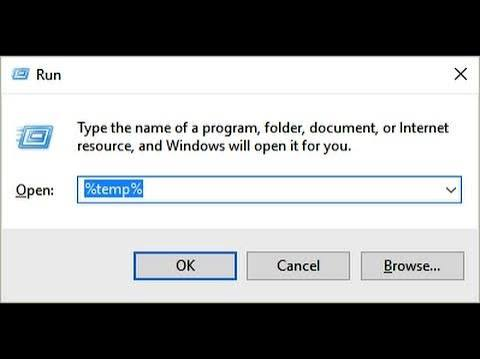
Type:
tempPress Enter.
Step 3
A folder containing temporary files will open.
Step 4
Press Ctrl + A to select everything.
Step 5
Press Delete.
Skip any files Windows says are currently in use.
Method 2: Delete Files from the %temp% Folder
This folder stores temporary files for your user account.
Steps
- Press Windows + R.
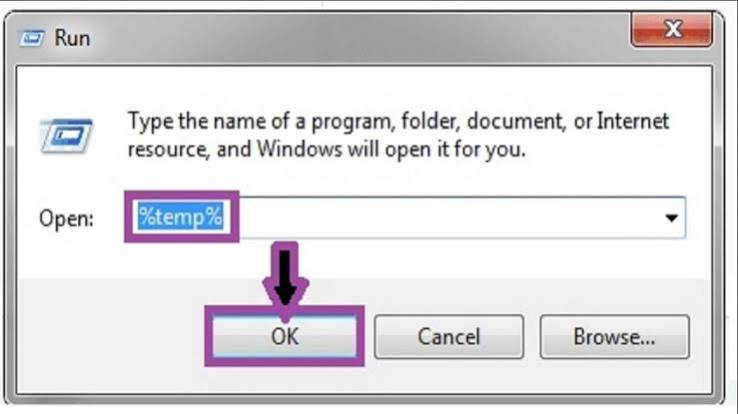
- Type:
%temp%- Press Enter.
- Select all files using Ctrl + A.
- Delete them.
Again, ignore files currently being used.
Method 3: Clear the Windows Temp Folder
Windows also stores system-wide temporary files.
Steps
- Open Run.
- Type:
C:\Windows\Temp- Press Enter.
- Give administrator permission if requested.
- Delete all files that can be removed.
Method 4: Use Storage Sense
Storage Sense is a built-in Windows feature that automatically removes unnecessary files.
Steps
- Open Settings.
- Select System.
- Click Storage.
- Turn on Storage Sense.
- Click Configure Storage Sense.
- Choose how often Windows should clean temporary files.
Storage Sense can also remove files from the Recycle Bin and Downloads folder if configured.
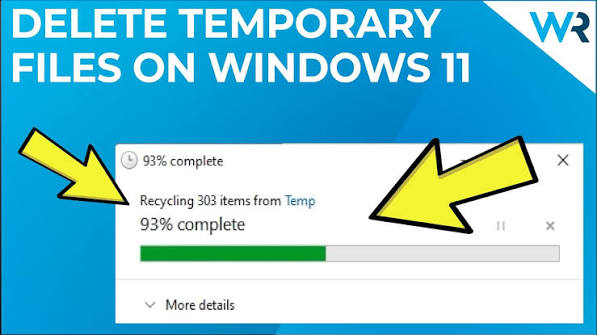
Method 5: Use Disk Cleanup
Disk Cleanup is another built-in utility.
Steps
- Search for Disk Cleanup.
- Open the application.
- Select your Windows drive (usually C:).
- Click OK.
- Tick items such as:
- Temporary files
- Temporary Internet Files
- Delivery Optimization Files
- Thumbnails
- Recycle Bin
- Click OK.
- Select Delete Files.
Method 6: Empty the Recycle Bin
Deleted files remain in the Recycle Bin until permanently removed.
Steps
- Right-click the Recycle Bin.
- Choose Empty Recycle Bin.
- Confirm deletion.
This instantly frees storage.
Method 7: Clear Browser Cache
Web browsers store cached files that can consume significant space.
For browsers like Chrome, Edge, or Firefox:
- Open browser settings.
- Go to Privacy and Security.
- Select Clear Browsing Data.
- Choose Cached images and files.
- Click Clear Data.
Is It Safe to Delete Temp Files?
Yes. In most cases, deleting temporary files is completely safe.
However:
- Do not delete files currently in use.
- Skip files Windows refuses to remove.
- Save your work and close running programs before cleaning.
Windows will recreate any necessary temporary files automatically.
How Often Should You Clear Temp Files?
For most users:
- Once every two to four weeks is sufficient.
- Heavy gamers or video editors may benefit from weekly cleanup.
- If your storage is nearly full, clean temporary files immediately.
Regular maintenance keeps your PC running efficiently.
Tips to Keep Your Windows PC Fast
Besides deleting temp files, consider these maintenance tips:
- Keep Windows updated.
- Uninstall programs you no longer use.
- Disable unnecessary startup applications.
- Scan for malware regularly.
- Keep at least 15–20% of your drive free.
- Restart your computer periodically.
- Defragment HDDs (not SSDs).
- Use Storage Sense for automatic cleanup.
These habits help maintain system performance over time.
Common Mistakes to Avoid
Avoid these common errors while cleaning:
- Deleting important personal files by mistake.
- Removing files from unknown system folders.
- Interrupting Disk Cleanup while it is running.
- Using unreliable third-party cleaner software.
- Ignoring Windows updates after cleanup.
Sticking to Windows’ built-in tools is the safest approach.
Also Read:https://www.drivereasy.com/
Conclusion
Clearing Windows temporary files is a simple yet effective way to improve your computer’s speed and free up valuable disk space. Temporary files naturally accumulate as Windows and applications perform everyday tasks, but they are rarely needed once those tasks are complete. By regularly deleting these files using the Temp folder, %temp%, Disk Cleanup, or Storage Sense, you can keep your system organised and responsive.
Making temporary file cleanup part of your monthly maintenance routine helps reduce clutter, improve performance, and extend the life of your storage drive. Combined with regular updates, malware scans, and sensible storage management, this small task can make a noticeable difference in your Windows experience.



