

Introduction
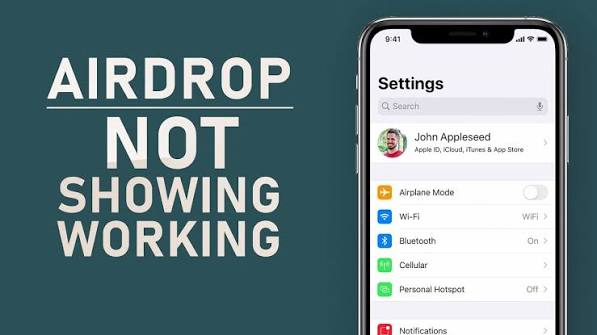
AirDrop is one of Apple’s most convenient features, allowing users to quickly share photos, videos, documents, contacts, and other files between iPhones, iPads, and Macs without using cables or the internet. It relies on Bluetooth and Wi-Fi to establish a secure connection between nearby Apple devices. While AirDrop usually works seamlessly, there are times when it may stop functioning properly.
If your AirDrop is not working, don’t worry. Most AirDrop problems can be fixed with a few simple troubleshooting steps. This guide explains the common reasons why AirDrop fails, how to fix it on iPhone, iPad, and Mac, and tips to prevent future issues.
Why Is AirDrop Not Working?
AirDrop may stop working for several reasons, including:
- Bluetooth is disabled.
- Wi-Fi is turned off.
- Personal Hotspot is enabled.
- Devices are too far apart.
- AirDrop visibility is set incorrectly.
- Software bugs or outdated iOS/macOS.
- Device compatibility issues.
- Temporary system glitches.
Identifying the exact cause helps you apply the correct solution quickly.
Check Device Compatibility
Before troubleshooting, make sure both devices support AirDrop.
iPhone and iPad
AirDrop requires:
- iPhone 5 or newer
- iPad (4th generation or newer)
- iPod touch (5th generation or newer)
- iOS 7 or later
Mac
AirDrop works on:
- Mac models introduced in 2012 or later
- macOS Yosemite or newer
Older devices may not fully support modern AirDrop features.
Turn On Bluetooth
AirDrop uses Bluetooth to discover nearby devices.
On iPhone
- Open Settings.
- Tap Bluetooth.
- Turn Bluetooth on.
Or use Control Center.
On Mac
- Open Control Center.
- Enable Bluetooth.
If Bluetooth is already enabled, try turning it off and back on.
Enable Wi-Fi
Although AirDrop doesn’t require an internet connection, Wi-Fi must be enabled.
Check that:
- Wi-Fi is switched on.
- Airplane Mode is disabled.
- Both devices have Wi-Fi enabled.
Disable Personal Hotspot
Personal Hotspot disables AirDrop on iPhones.
To disable it:
- Open Settings.
- Tap Personal Hotspot.
- Turn it off.
After disabling the hotspot, try AirDrop again.
Adjust AirDrop Visibility
Sometimes your device is simply hidden.
On iPhone
Go to:
Settings → General → AirDrop
Choose either:
- Contacts Only
- Everyone for 10 Minutes
If the other person isn’t in your contacts, use Everyone for 10 Minutes.
On Mac
- Open Finder.
- Select AirDrop.
- Choose Allow me to be discovered by.
- Select Everyone or Contacts Only.
Keep Devices Close Together
AirDrop works best within approximately 30 feet (9 metres).
Move both devices closer if:
- They cannot detect each other.
- Transfers keep failing.
- Connection drops frequently.
Avoid walls or large metal objects between devices.
Unlock Both Devices
AirDrop often fails when the receiving device is locked.
Make sure:
- Both screens are awake.
- Devices are unlocked.
- The receiving user accepts the transfer request.
Restart Both Devices
Many temporary software issues disappear after a restart.
Restart iPhone
- Hold the Side button and Volume button.
- Slide to power off.
- Turn it back on.
Restart Mac
- Click the Apple menu.
- Select Restart.
After restarting, test AirDrop again.

Update iOS or macOS
Software bugs can affect AirDrop.
Update iPhone
Go to:
Settings → General → Software Update
Install any available updates.
Update Mac
Go to:
System Settings → General → Software Update
Keeping your devices updated improves stability and security.
Turn Airplane Mode On and Off
Refreshing wireless connections may solve AirDrop issues.
- Enable Airplane Mode.
- Wait 30 seconds.
- Disable Airplane Mode.
- Re-enable Bluetooth and Wi-Fi.
Try AirDrop again.
Check Screen Time Restrictions
AirDrop may be disabled by restrictions.
On iPhone:
- Open Settings.
- Tap Screen Time.
- Select Content & Privacy Restrictions.
- Tap Allowed Apps.
- Ensure AirDrop is enabled.
Reset Network Settings
If wireless settings are corrupted, resetting them can help.
Go to:
Settings → General → Transfer or Reset iPhone → Reset → Reset Network Settings
Note that this will remove saved Wi-Fi passwords.
Sign In with Apple ID
Sometimes signing out and back into your Apple ID resolves AirDrop issues.
- Open Settings.
- Tap your Apple ID.
- Sign out.
- Restart your device.
- Sign back in.
This refreshes Apple services and syncing.
Check Mac Firewall
A strict firewall configuration may block AirDrop.
On Mac:
- Open System Settings.
- Select Network.
- Open Firewall.
- Check firewall settings.
- Allow incoming connections if necessary.
Try Sending a Different File
Sometimes the problem is the file itself.
Try sending:
- A photo
- A small document
- A contact
- A note
If smaller files transfer successfully, the original file may be damaged or too large.
Common AirDrop Error Messages
Some common problems include:
Waiting
Usually indicates the receiving device hasn’t accepted the request or isn’t visible.
Failed
Often caused by:
- Weak Bluetooth signal
- Low storage space
- Software glitches
No People Found
Usually means:
- AirDrop is disabled
- Devices are too far apart
- Visibility settings are incorrect
Tips to Prevent Future AirDrop Problems
To keep AirDrop working smoothly:
- Keep iOS and macOS updated.
- Leave Bluetooth enabled when needed.
- Use “Everyone for 10 Minutes” when sharing with new people.
- Avoid using Personal Hotspot during transfers.
- Keep devices within range.
- Restart devices occasionally.
- Ensure sufficient storage space is available.
These simple habits can reduce connection issues.
When to Contact Apple Support
If AirDrop still doesn’t work after trying all the fixes, there may be a hardware issue involving the Bluetooth or Wi-Fi components. Contact Apple Support or visit an authorised Apple service centre if:
- Bluetooth won’t turn on.
- Wi-Fi is greyed out.
- AirDrop never detects any devices.
- The issue persists after software updates and network resets.
Professional diagnostics can identify hardware faults that cannot be fixed through software troubleshooting.
Also Read:https://www.guidingtech.com/
Conclusion
AirDrop is a fast, secure, and convenient way to share files between Apple devices. While occasional issues can occur, most AirDrop problems are easy to resolve by checking Bluetooth and Wi-Fi, adjusting AirDrop settings, restarting devices, updating software, or resetting network settings. By following the troubleshooting steps in this guide, you can restore AirDrop functionality and continue sharing files quickly and efficiently. Keeping your devices updated and properly configured will also help prevent future AirDrop issues.



