

Introduction
As cyber threats continue to evolve, protecting your computer has become more important than ever. Modern PCs include several built-in security features designed to keep your system safe from malware and unauthorized software. One of the most important of these features is Secure Boot. If you have recently tried to install Windows 11 or launch games like Valorant, you may have seen a message asking you to enable Secure Boot.
Secure Boot is a security standard developed as part of the Unified Extensible Firmware Interface (UEFI). Its primary purpose is to ensure that only trusted software is loaded during the startup process. By verifying the digital signatures of the operating system and boot files, Secure Boot prevents malicious programs from running before Windows starts.
Many users are unfamiliar with BIOS or UEFI settings and may hesitate to make changes. However, enabling Secure Boot is usually a simple process when done correctly. This article explains what Secure Boot is, why it is important, how to enable it, common issues you may encounter, and the benefits of keeping it turned on.
What Is Secure Boot?
Secure Boot is a firmware security feature included in most modern computers. It works by checking the digital signatures of software that loads during the boot process. If the software is trusted and properly signed, the system allows it to run. If the software is unknown or has been altered, Secure Boot blocks it from loading.
This process helps prevent malware, rootkits, and bootkits from infecting your computer before the operating system starts. Since these threats operate at a very low level, they can be difficult to detect with traditional antivirus software. Secure Boot provides an additional layer of protection by stopping them before they have a chance to execute.
Why Is Secure Boot Important?
Secure Boot is essential because it improves the overall security of your computer. Cybercriminals often target the boot process to install malware that can bypass antivirus programs. Secure Boot helps eliminate this risk by verifying every component involved in starting your system.
Some of the major benefits include:
- Protects your PC from boot-level malware.
- Prevents unauthorized operating systems from loading.
- Supports Windows 11 installation requirements.
- Enhances overall system stability.
- Works alongside TPM (Trusted Platform Module) for stronger security.
- Helps protect sensitive personal and business data.
For both home users and professionals, enabling Secure Boot is an effective way to improve device security.
When Should You Enable Secure Boot?
There are several situations where enabling Secure Boot is recommended:
- Installing Windows 11.
- Upgrading your computer’s security.
- Running games that require Secure Boot, such as Valorant.
- Protecting your computer from firmware-based malware.
- Setting up a new PC.
Many new computers already have Secure Boot enabled, but older systems or custom-built PCs may require manual activation.
How to Check If Secure Boot Is Enabled
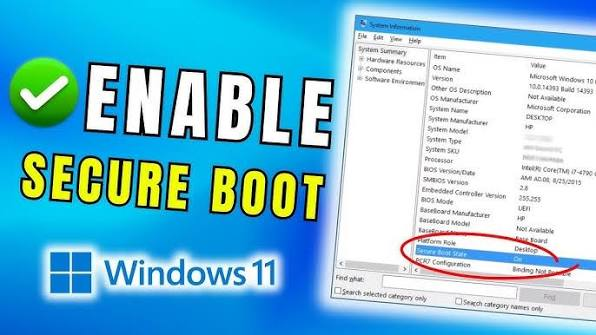
Before making any changes, it’s a good idea to check whether Secure Boot is already active.
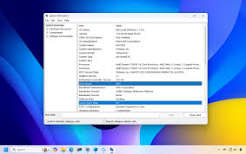
In Windows:
- Press Windows + R.
- Type msinfo32 and press Enter.
- Open System Information.
- Locate Secure Boot State.
If it says On, Secure Boot is already enabled. If it shows Off, you can enable it through your computer’s UEFI settings.
How to Enable Secure Boot
Enabling Secure Boot requires accessing your computer’s BIOS or UEFI firmware.
Step 1: Enter BIOS or UEFI
Restart your computer and press the required key during startup. Common keys include Delete, F2, F10, F12, or Esc, depending on your computer manufacturer.
Step 2: Switch to UEFI Mode
Secure Boot only works in UEFI mode.
If your system is using Legacy BIOS or CSM mode:
- Open the Boot settings.
- Change Boot Mode from Legacy to UEFI.
- Save the changes.
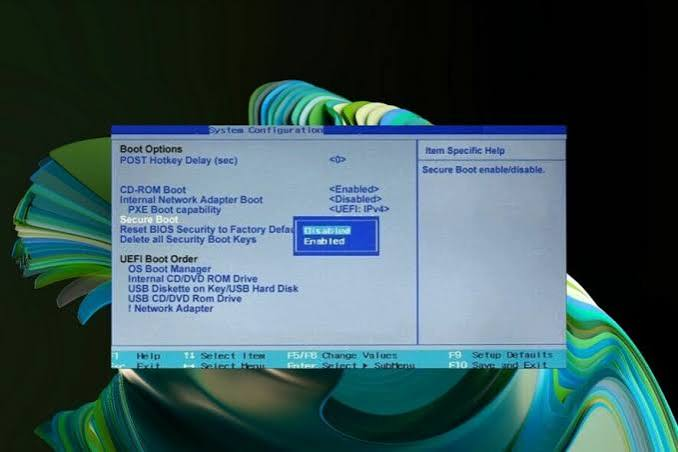
Step 3: Locate Secure Boot
Navigate to the Security or Boot menu.
Find the Secure Boot option.
Step 4: Enable the Feature
Change Secure Boot from Disabled to Enabled.
If your system requests installing factory default keys, accept the prompt.
Step 5: Save and Restart
Save your BIOS settings and restart your computer.
Windows should now boot normally with Secure Boot enabled.
Common Problems and Their Solutions
Secure Boot Option Is Missing
Some computers hide this option while Legacy Boot or CSM is enabled.
Disable Legacy Boot and switch to UEFI mode before checking again.
Secure Boot Is Greyed Out
This usually happens because the default security keys have not been installed.
Choose the option to restore or install factory default Secure Boot keys.
Windows Does Not Start
If Windows was installed using Legacy BIOS mode, enabling Secure Boot may prevent the system from booting.
In this case:
- Return to BIOS.
- Restore previous settings.
- Convert the system disk from MBR to GPT if needed.
- Reinstall Windows in UEFI mode if necessary.
Unsupported Secure Boot
Older computers may not support Secure Boot because they use traditional BIOS instead of UEFI.
Check your motherboard or laptop specifications to confirm compatibility.
Secure Boot and Windows 11
Microsoft requires Secure Boot support for Windows 11 on compatible hardware. During installation, Windows checks whether Secure Boot and TPM are available.
If Secure Boot is disabled, the installer may display compatibility warnings. Enabling it ensures that your computer meets Microsoft’s recommended security standards.
Secure Boot and Gaming
Many modern games use advanced anti-cheat software to prevent cheating. Some of these systems require Secure Boot to verify that your operating system has not been modified.
Games that may require Secure Boot include:
- Valorant
- FIFA (certain editions)
- EA titles with advanced anti-cheat
- Other competitive multiplayer games
If a game refuses to launch because Secure Boot is disabled, enabling it usually resolves the issue.
Best Practices
To maintain a secure and stable system:
- Keep your BIOS updated.
- Use UEFI instead of Legacy mode.
- Enable TPM if supported.
- Install Windows updates regularly.
- Use trusted software only.
- Keep Secure Boot enabled unless you have a specific reason to disable it.
Also Read:https://windowsreport.com/enable-secure-boot-windows-11-user-mode/
Conclusion
Secure Boot is one of the most valuable security features available on modern computers. It protects your PC by ensuring that only trusted software loads during startup, reducing the risk of malware, rootkits, and other boot-level threats. Whether you are installing Windows 11, improving your computer’s security, or meeting the requirements of certain games, enabling Secure Boot is a smart decision. Although accessing BIOS or UEFI settings may seem intimidating at first, the process is usually quick and straightforward. By following the steps outlined in this guide and keeping your system updated, you can enjoy a safer, more reliable computing experience while protecting your personal data from evolving cyber threats.



