

Introduction
A webcam is an essential part of modern computing, whether you’re attending online meetings, taking virtual classes, streaming content, or chatting with friends and family. However, many Windows 11 users experience webcam issues where the camera fails to open, displays a black screen, or isn’t detected by the system. These problems can be frustrating, especially when you need your camera for work or school.
Fortunately, most webcam problems on Windows 11 can be fixed without replacing the hardware. In this guide, you’ll learn the common reasons why your webcam isn’t working and discover step-by-step solutions to get it working again.
Why Is My Webcam Not Working on Windows 11?
Several factors can prevent your webcam from functioning properly. The most common causes include:
- Outdated or corrupted camera drivers
- Windows 11 updates causing compatibility issues
- Camera privacy settings blocking access
- Hardware problems
- Antivirus software blocking the webcam
- Another application using the camera
- Disabled camera in Device Manager
- Faulty USB connection (for external webcams)
Identifying the exact cause will help you apply the correct solution quickly.
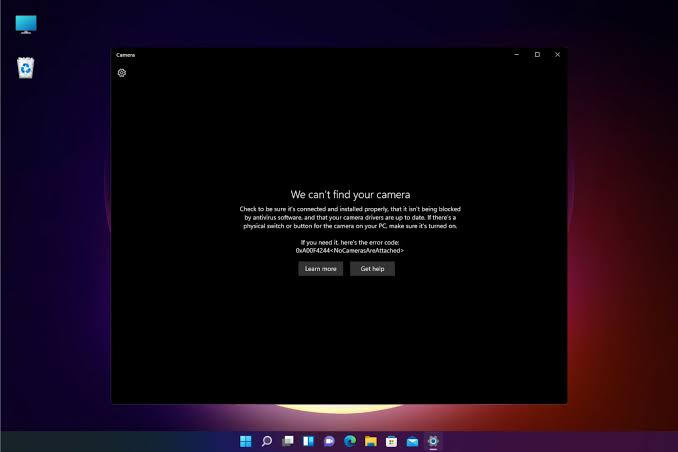
Common Webcam Problems
Windows 11 users often report issues such as:
- Camera app won’t open
- Webcam shows a black screen
- “No camera found” error
- Webcam not detected in Zoom or Microsoft Teams
- Camera freezes during video calls
- Webcam works in one app but not another
- External USB webcam not recognized
Fortunately, these issues are usually easy to fix.
Fix 1: Restart Your Computer
A simple restart can resolve temporary software glitches affecting your webcam.
To restart:
- Click Start.
- Select Power.
- Click Restart.
After rebooting, open the Camera app to check if the issue is resolved.
Fix 2: Check Camera Privacy Settings
Windows 11 includes privacy settings that allow or block camera access.
To verify them:
- Open Settings.
- Go to Privacy & Security.
- Click Camera.
- Turn on Camera Access.
- Enable Let apps access your camera.
- Make sure your video conferencing apps (Zoom, Teams, Skype, etc.) have permission to use the camera.
If camera access is disabled, no application will be able to use your webcam.
Fix 3: Test the Camera App
Open the built-in Camera app.
- Press the Windows key.
- Search for Camera.
- Launch the app.
If the Camera app works, the issue may be with a specific application rather than the webcam itself.
Fix 4: Update Webcam Drivers
Outdated drivers are one of the most common causes of webcam problems.
To update your driver:
- Right-click the Start button.
- Select Device Manager.
- Expand Cameras.
- Right-click your webcam.
- Choose Update Driver.
- Select Search automatically for drivers.
Restart your PC after the update.
Fix 5: Reinstall the Camera Driver
If updating doesn’t help, reinstall the driver.
Steps:
- Open Device Manager.
- Expand Cameras.
- Right-click your webcam.
- Select Uninstall Device.
- Restart your computer.
Windows 11 will automatically reinstall the correct driver during startup.
Fix 6: Check Windows Update
Microsoft regularly releases updates that improve hardware compatibility.
To check for updates:
- Open Settings.
- Select Windows Update.
- Click Check for Updates.
- Install all available updates.
- Restart your PC.
Keeping Windows updated helps resolve many hardware-related issues.
Fix 7: Close Other Camera Apps
Only one application can use the webcam at a time.
Close apps such as:
- Zoom
- Microsoft Teams
- Skype
- Discord
- OBS Studio
- Google Meet (browser tabs)
Then try opening the Camera app again.
Fix 8: Run the Camera Troubleshooter
Windows 11 includes built-in troubleshooting tools.
Go to:
Settings → System → Troubleshoot → Other Troubleshooters
If available, run the Camera troubleshooter and follow the on-screen instructions.
Fix 9: Check Antivirus Software
Some antivirus programs block webcam access for privacy protection.
Open your antivirus settings and look for:
- Webcam Protection
- Camera Shield
- Privacy Protection
Temporarily disable the feature and test your webcam again.
Fix 10: Check Device Manager
Sometimes the webcam is disabled.
To enable it:
- Open Device Manager.
- Expand Cameras.
- If the webcam has a down arrow, right-click it.
- Select Enable Device.
Restart your computer afterward.
Fix 11: Test an External Webcam
If you’re using a USB webcam:
- Try another USB port.
- Disconnect and reconnect the camera.
- Avoid using USB hubs.
- Test the webcam on another computer.
If it doesn’t work on another PC, the webcam itself may be faulty.
Fix 12: Reset the Camera App
A corrupted Camera app can also cause problems.
To reset it:
- Open Settings.
- Go to Apps.
- Select Installed Apps.
- Find Camera.
- Click Advanced Options.
- Select Repair.
- If necessary, click Reset.
Fix 13: Roll Back Recent Updates
If your webcam stopped working after a Windows update:
- Open Settings.
- Select Windows Update.
- Go to Update History.
- Choose Uninstall Updates.
- Remove the most recent update if appropriate.
Restart your PC and test the webcam again.
Prevent Future Webcam Problems
To keep your webcam working properly:
- Keep Windows 11 updated.
- Install the latest device drivers.
- Avoid downloading drivers from unofficial websites.
- Regularly scan for malware.
- Check privacy settings after major updates.
- Restart your computer occasionally to clear temporary glitches.
These habits can help prevent many common camera issues.
Frequently Asked Questions
Why does Windows 11 say “No Camera Found”?
This usually happens because the camera driver is missing, the webcam is disabled, or the hardware is not detected.
Why is my webcam showing a black screen?
A black screen can result from outdated drivers, another app using the camera, or incorrect privacy settings.
Can Windows Update break my webcam?
Occasionally, a Windows update may introduce driver compatibility issues. Installing the latest updates or rolling back a problematic update can often resolve the issue.
How do I know if my webcam is damaged?
Test the webcam on another computer. If it still doesn’t work, the hardware may be defective.
Should I reinstall Windows to fix webcam issues?
Reinstalling Windows should be a last resort. Most webcam problems can be fixed by updating drivers, adjusting privacy settings, repairing the Camera app, or checking for software conflicts.
Also Read:https://www.thewindowsclub.com/
Conclusion
A webcam that isn’t working on Windows 11 can interrupt meetings, online classes, and video calls, but the issue is usually fixable with a few troubleshooting steps. Start by checking your camera permissions, updating or reinstalling drivers, closing applications that may be using the camera, and installing the latest Windows updates. If you’re using an external webcam, verify the USB connection and test it on another device.
By following the solutions in this guide, you can resolve most Windows 11 webcam issues and restore your camera to normal operation without the need for expensive repairs or technical assistance.



