

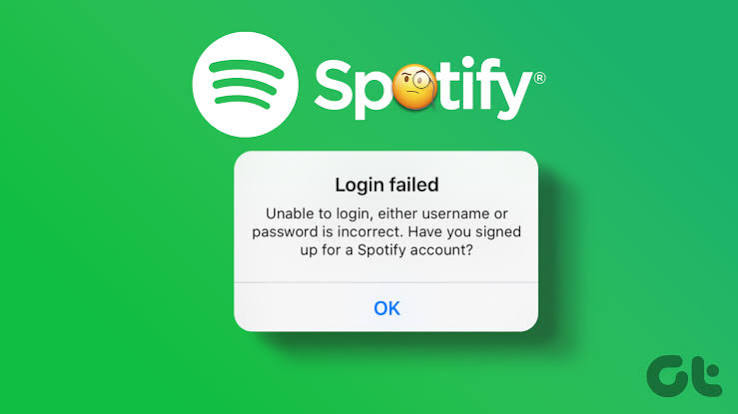
Spotify is one of the most popular music streaming platforms, but like any online service, users can sometimes experience login problems. You may enter the correct password and still be unable to access your account, or the Spotify app may repeatedly return you to the login screen.
Login issues can happen because of incorrect account details, internet problems, outdated applications, browser issues, server outages, or problems with the method originally used to create the account. Fortunately, most Spotify login problems can be resolved with a few simple troubleshooting steps.
Why Am I Having Trouble Logging Into Spotify?
There are several possible reasons why Spotify may not let you sign in. The most common include:
- Incorrect email address or password
- Forgotten account credentials
- Unstable internet connection
- Outdated Spotify application
- Browser cache or cookie problems
- Temporary Spotify service issues
- Problems with Google, Apple, or Facebook login
- Account created with a different email address
- VPN or network-related problems
Identifying the cause can make troubleshooting much easier.
1. Check Your Internet Connection
Identifying the cause can make troubleshooting much easier.
Open another website or application on your device to see whether the internet is working normally. If other services are also having problems, restart your Wi-Fi router or switch to another reliable connection.
On a phone, you can also try switching between Wi-Fi and mobile data to determine whether the network is causing the problem.
A weak or unstable connection can prevent the Spotify app or website from communicating properly with Spotify’s servers.
2. Check Your Email Address
One common login mistake is using the wrong email address.
If you have more than one email account, you may accidentally try to log into Spotify with an address that is not connected to your account.
Think about which email address you used when creating the Spotify account. You may also have originally created the account through another service, such as Google or Apple.
If you are unsure, use Spotify’s official password-reset process and try the email addresses you commonly use.
3. Reset Your Spotify Password
If you cannot remember your password, resetting it is usually the easiest solution.
Go to Spotify’s password reset page and enter the email address associated with your account. Spotify can send instructions that allow you to create a new password.
When creating a new password, avoid using an extremely simple combination. A strong, unique password is safer and easier to manage when stored in a reputable password manager.
After resetting your password, return to Spotify and try logging in again.
4. Make Sure You Are Using the Correct Login Method
Spotify accounts can be accessed using different authentication methods.
For example, you may have created an account using your email address, Google account, Apple account, or another available sign-in option.
If you normally use a Google or Apple sign-in button, entering an email address and password manually may not work as expected.
Try the same login method you originally used when creating your account.
5. Update the Spotify App
An outdated Spotify application can sometimes cause unexpected problems.

Open your device’s official app store and check whether a Spotify update is available. Install the latest version and then restart the application.
Updates can contain bug fixes, security improvements, compatibility changes, and other improvements that may resolve login-related problems.
If you are using Spotify on Windows or another desktop operating system, make sure the desktop application is also updated.
6. Restart the Spotify App
Sometimes the problem is temporary.
Completely close Spotify and then open it again. On a phone, remove it from the recent-apps screen if necessary.
On a computer, make sure Spotify has completely closed before launching it again.
A simple restart can clear a temporary application problem without requiring more complicated troubleshooting.
7. Clear Browser Cache and Cookies
If you are having trouble logging into Spotify through a web browser, cached files or cookies may be causing the issue.
Try opening Spotify in a private or incognito browser window. If you can log in successfully there, the problem may be related to your browser’s stored data.
You can then clear the Spotify-related cookies and cached information from your normal browser and try again.
Also make sure your browser is updated to the latest available version.
8. Try Another Device
Testing Spotify on another device can help identify the source of the problem.
For example, if you cannot log in through your computer, try the Spotify website or application on your phone.
If the account works normally on another device, the problem may be related to your original device, application, browser, or network rather than your Spotify account.
This is a useful troubleshooting step because it helps narrow down the cause.
9. Check for Spotify Service Problems
Sometimes there is nothing wrong with your account or device. The service itself may be experiencing a temporary technical problem.
If Spotify is having a widespread outage, login attempts may fail even when your credentials are correct.
Check Spotify’s official communication channels or service-status information for reports of ongoing problems. If an outage is confirmed, waiting for the service to recover may be the only practical solution.
Avoid repeatedly changing your password when the problem is clearly caused by a service outage.
10. Temporarily Check VPN and Network Settings
VPNs and unusual network configurations can occasionally interfere with online services.
If you are using a VPN and Spotify is not working correctly, try disconnecting it temporarily and then test the login again.
You can also try another trusted network to determine whether your current connection is responsible.
Do not change network settings unnecessarily. Test one change at a time so you can identify what actually solves the problem.
11. Reinstall Spotify
If the Spotify application continues to have problems after updating and restarting, reinstalling it may help.
First remove the application from your device. Then download and install the current version from Spotify’s official website or your device’s official application store.
Reinstalling can replace damaged application files and reset certain local settings.
Remember that reinstalling the application does not delete your Spotify account itself.
12. Secure Your Account
If you suspect that someone else may have accessed your account, take account security seriously.

Change your password and use a password that is not shared with other websites. If available, review your account information and connected services.
Do not share your Spotify password with other people. Be cautious with emails or messages claiming that your account has been compromised and asking you to enter your credentials through an unfamiliar website.
Always make sure you are using Spotify’s legitimate website or application before entering account information.
When You Should Contact Spotify Support
If you have tried the basic troubleshooting steps and still cannot access your account, contacting Spotify Support may be appropriate.
This is especially important if you believe your account information has changed without your permission or you cannot access the email address associated with the account.
When contacting support, provide useful information about the problem without sharing your password or other sensitive credentials.
Also Read:https://www.guidingtech.com/
Final Thoughts
Spotify login problems can be frustrating, but many are relatively simple to resolve. Start by checking your internet connection and confirming that you are using the correct email address and login method. If necessary, reset your password and update the Spotify application.
For browser problems, clearing relevant cached data or testing a private browsing window can help. Testing another device or network can also show whether the issue is specific to your setup.
If none of these solutions work, check whether Spotify is experiencing a service outage and contact official Spotify Support when necessary.
The most important thing is to avoid repeatedly changing settings without identifying the cause. Work through the troubleshooting steps one at a time, and you should be able to determine why Spotify is not letting you log in.