

The internet has become an important part of everyday life. People use it for communication, shopping, banking, entertainment, education, work, and social media. While the internet offers many benefits, it also creates privacy risks. Personal information can be collected by websites, apps, advertisers, online services, and even cybercriminals.
Protecting your privacy does not mean avoiding the internet completely. Instead, it means understanding what information you share and taking practical steps to keep your accounts and personal data safer. Fortunately, many privacy improvements are simple and do not require advanced technical knowledge.
Here are some useful internet privacy tips that everyone should know.
1. Use Strong and Unique Passwords
One of the easiest ways to improve online privacy is to use strong passwords. A password should be difficult for other people to guess and should not contain obvious information such as your name, birthday, or phone number.
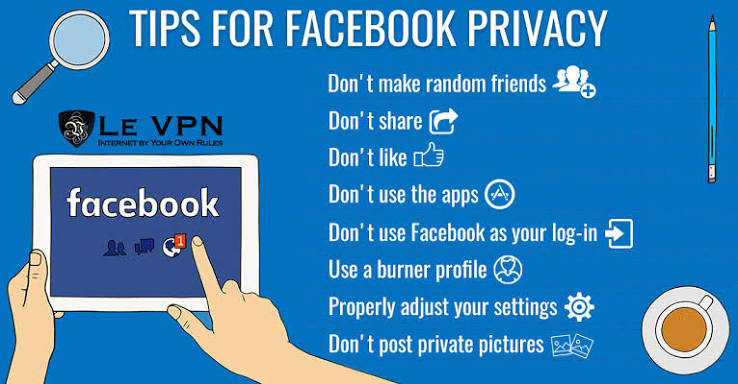
Avoid using the same password for multiple accounts. If one website experiences a security breach, attackers may try the stolen password on other services.
Consider using a reputable password manager to create and store unique passwords. This allows you to use different passwords without having to memorize every one.
2. Enable Two-Factor Authentication
Two-factor authentication, commonly called 2FA, adds another layer of security to an online account.
With 2FA enabled, logging in usually requires your password plus another verification method. Depending on the service, this could be an authentication app, security key, or another approved method.
Enable 2FA on important accounts whenever it is available, particularly for email, financial services, cloud storage, and social media.
3. Be Careful About What You Share
Think carefully before posting personal information online. Details such as your full address, phone number, school or workplace information, travel plans, and private documents can reveal more about you than you may realize.
Social media posts can also remain available for a long time, even after you delete them.
Before posting something publicly, ask yourself whether you would be comfortable with a stranger seeing it.
4. Review Social Media Privacy Settings
Social media platforms provide privacy controls that determine who can see your posts and personal information.
Review these settings regularly. Limit personal information that is publicly visible and check who can contact you, tag you, or view your posts.
Privacy settings can change when platforms introduce new features, so reviewing them occasionally is a good habit.
5. Keep Your Software Updated
Software updates are not only about adding new features. They often include security improvements and fixes for known vulnerabilities.
Keep your operating system, web browser, mobile apps, and security software updated. Turn on automatic updates when they are available and appropriate.
Using outdated software can increase the risk of privacy and security problems.
6. Be Careful With Public Wi-Fi
Public Wi-Fi can be convenient at airports, hotels, cafes, libraries, and other locations. However, you should be cautious when using networks you do not control.
Avoid accessing highly sensitive accounts on unfamiliar networks unless you have a trusted secure connection. Always make sure websites use HTTPS and keep your device’s security features enabled.
When possible, use your own mobile connection for sensitive activities instead of an unknown public network.
7. Check App Permissions
Apps can request access to different parts of your device, including your location, camera, microphone, contacts, and files.
Not every app needs access to all of these features.
Review permissions in your device settings and remove access that an app does not reasonably need. If an unfamiliar application requests excessive permissions, consider whether you actually need to use it.
8. Use Privacy-Focused Browser Settings
Your web browser can reveal information about your online activity through cookies, website permissions, and other tracking technologies.
Review your browser’s privacy and security settings. Depending on your needs, you can limit third-party cookies, block intrusive tracking, clear browsing data, and restrict website permissions.
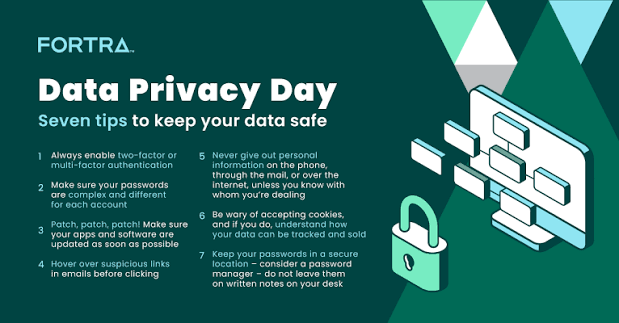
Private or incognito browsing can prevent certain browsing information from being saved locally, but it does not make you completely anonymous online. Your internet provider, employer, school network, or websites may still be able to collect information.
9. Be Careful With Phishing Emails and Messages
Phishing is one of the most common ways criminals attempt to obtain personal information.
A phishing message may pretend to come from a bank, delivery company, social media platform, gaming service, or another organization. It may ask you to click a link, provide a password, or confirm personal information.
Do not automatically trust urgent messages. Check the sender carefully and avoid entering sensitive information through links in unexpected emails or messages.
When in doubt, open the organization’s official website yourself rather than using the link provided in the message.
10. Limit Location Sharing
Location information can reveal where you live, work, study, or frequently visit.
Check which apps have permission to access your location. If an app does not need location access to provide its main function, consider disabling the permission.
Also think carefully before publicly posting photos or updates that reveal your current location.
11. Be Careful With Browser Extensions
Browser extensions can provide useful features, but they may request permissions that allow them to access website information.
Only install extensions from trusted sources and check what permissions they request. Remove extensions that you no longer use.
Keeping the number of installed extensions relatively small can also make it easier to understand what has access to your browsing environment.
12. Secure Your Email Account
Your email account is especially important because it may be connected to many other online services.
If someone gains access to your email, they may be able to reset passwords for other accounts.
Use a unique password and enable two-factor authentication. Review account recovery options and check for unfamiliar login activity when your email provider offers security alerts.
13. Avoid Saving Sensitive Information on Shared Devices
If you use a computer that other people can access, be careful about saving passwords, documents, photos, and other private information.
Log out of important accounts when you finish using a shared device. Avoid saving passwords in browsers on computers that you do not control.
If possible, use a separate user account on shared computers.
14. Review Your Online Accounts
Over time, people often create accounts on websites and apps they no longer use.
Old accounts can contain personal information, so periodically review your online presence. Delete accounts you no longer need when the service provides an appropriate account-deletion option.
You can also review connected applications and remove services that no longer need access to your accounts.
15. Think Before Clicking
A simple rule can prevent many privacy problems: slow down before clicking.
Unexpected links, downloads, pop-ups, QR codes, and attachments can lead to phishing pages, unwanted software, or other security risks.
If something looks suspicious or creates unnecessary urgency, stop and verify it before taking action.
Also Read:https://www.broadbandsearch.net/
Final Thoughts
Internet privacy is not something you protect once and then forget. It is an ongoing habit. Small changes, such as using unique passwords, enabling two-factor authentication, reviewing app permissions, limiting public information, and keeping software updated, can significantly improve your online privacy.
You do not need to be a cybersecurity expert to protect your personal information. Start with the accounts and devices you use most often, review your privacy settings, and become more careful about what you share online.
The most important principle is simple: think before you share, click, download, or give an app permission to access your information. By developing good privacy habits, you can enjoy the internet while reducing unnecessary exposure of your personal data.



