

A touchpad is one of the most important input devices on a laptop, allowing users to navigate, click, scroll, and perform gestures without needing an external mouse. When the touchpad suddenly stops working, it can be frustrating and affect productivity. Fortunately, most touchpad issues on Windows laptops can be resolved with a few troubleshooting steps.
In this guide, you’ll learn the common reasons why a touchpad stops working and the best methods to fix it on Windows 10 and Windows 11.
Common Reasons Why a Touchpad Stops Working
There are several possible causes behind a non-working touchpad, including:
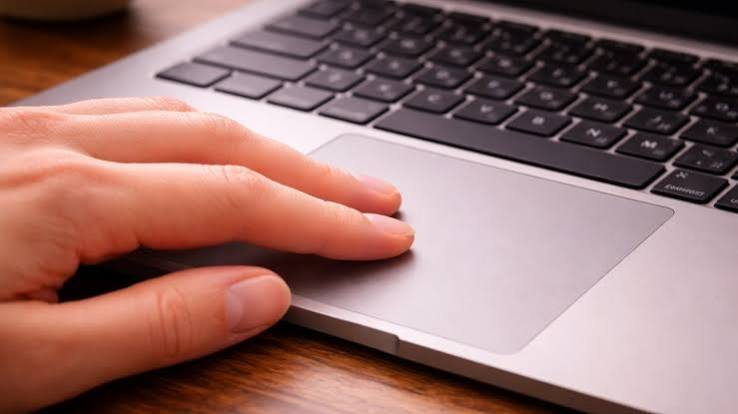
- The touchpad is accidentally disabled.
- Outdated or corrupted touchpad drivers.
- Incorrect Windows settings.
- Recent Windows updates causing compatibility issues.
- Hardware damage.
- BIOS settings disabling the touchpad.
- Third-party software conflicts.
Understanding the cause makes it easier to apply the correct solution.
1. Restart Your Laptop
Before trying advanced troubleshooting, restart your laptop.
Temporary software glitches can prevent the touchpad from responding. A simple reboot often restores normal functionality.
2. Check if the Touchpad Is Disabled
Many laptops have a keyboard shortcut that enables or disables the touchpad.
Common shortcuts include:
- Fn + F3
- Fn + F5
- Fn + F7
- Fn + F9
- Fn + F11
The exact key depends on your laptop manufacturer. Look for a key with a touchpad icon.
Press the shortcut once and test the touchpad again.
3. Enable the Touchpad in Windows Settings
Windows allows users to disable the touchpad manually.
To check:
- Open Settings.
- Select Bluetooth & devices.
- Click Touchpad.
- Ensure the touchpad switch is turned On.
If it is already enabled, turn it off and back on.
4. Disconnect External Mouse
Some laptops automatically disable the touchpad when an external USB mouse is connected.
Disconnect the mouse and test the touchpad again.
You can also disable the option that turns off the touchpad while a mouse is connected.
5. Clean the Touchpad
Dust, dirt, grease, or moisture can interfere with touchpad sensitivity.
Use a soft microfiber cloth to gently clean the touchpad surface.
Avoid using excessive liquid cleaners.
6. Update the Touchpad Driver
Outdated drivers are one of the most common reasons for touchpad issues.
To update the driver:
- Press Windows + X.
- Open Device Manager.
- Expand Mice and other pointing devices.
- Right-click the touchpad device.
- Select Update Driver.
- Choose Search automatically for drivers.
Restart your laptop after installation.
7. Reinstall the Touchpad Driver
If updating doesn’t work, reinstall the driver.
Steps:
- Open Device Manager.
- Right-click the touchpad device.
- Select Uninstall Device.
- Restart the computer.
Windows will automatically reinstall the appropriate driver.
8. Run the Hardware Troubleshooter
Windows includes troubleshooting tools that can detect hardware problems.
Open Settings > System > Troubleshoot > Other troubleshooters and run any available hardware or device-related troubleshooters.
Follow the instructions provided.
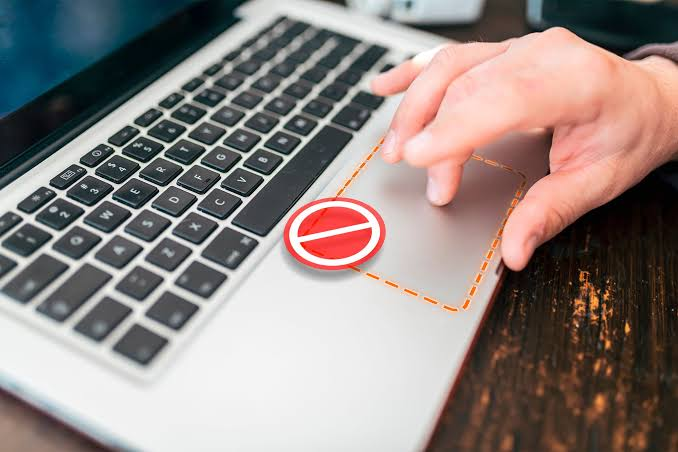
9. Install Windows Updates
Microsoft regularly releases updates that improve hardware compatibility.
To update Windows:
- Open Settings.
- Click Windows Update.
- Select Check for Updates.
- Install any available updates.
- Restart your laptop.
This may resolve driver or compatibility issues affecting the touchpad.
10. Roll Back a Recent Driver Update
If the touchpad stopped working after updating the driver:
- Open Device Manager.
- Right-click the touchpad device.
- Select Properties.
- Open the Driver tab.
- Click Roll Back Driver if the option is available.
Restart the laptop afterward.
11. Check BIOS Settings
The touchpad can sometimes be disabled in the BIOS.
Restart your computer and enter the BIOS setup by pressing the appropriate key (such as F2, Delete, or Esc, depending on the manufacturer).
Locate the internal pointing device or touchpad setting and ensure it is enabled.
Save the changes and restart.
12. Disable Tablet Mode
Some Windows devices behave differently in tablet mode.
If your laptop supports tablet mode, switch back to desktop mode and test the touchpad again.
13. Check for Third-Party Software Conflicts
Certain mouse utilities or system optimization tools may interfere with touchpad functionality.
If the issue started after installing new software:
- Uninstall the recently installed application.
- Restart your laptop.
- Test the touchpad.
14. Scan for Malware
Malicious software can affect system drivers and hardware performance.
Run a full scan using:
- Windows Security
- Microsoft Defender
- A trusted antivirus program
Remove any detected threats and restart your computer.
15. Perform a System Restore
If the touchpad stopped working after installing updates or software, use System Restore.
Steps:
- Search for Create a Restore Point.
- Click System Restore.
- Select a restore point created before the issue appeared.
- Follow the instructions.
Your personal files will remain safe while Windows settings are restored.
16. Test the Touchpad Hardware
If none of the software solutions work, the touchpad itself may be damaged.
Signs of hardware failure include:
- No cursor movement at all.
- Physical cracks or damage.
- Random clicking.
- Intermittent response.
In this case, contact your laptop manufacturer’s support center or a qualified repair technician.
Tips to Prevent Touchpad Problems
Follow these best practices to keep your touchpad working properly:
- Keep Windows updated.
- Install the latest drivers from your laptop manufacturer.
- Avoid dropping or hitting your laptop.
- Keep the touchpad clean.
- Use a protective laptop case during travel.
- Install software only from trusted sources.
- Create restore points before major system updates.
Preventive maintenance helps reduce hardware and software issues over time.
Frequently Asked Questions
Why is my touchpad not responding?
It could be disabled, have outdated drivers, incorrect settings, or a hardware fault.
Why does my touchpad work sometimes and stop randomly?
This may be caused by driver issues, software conflicts, or loose internal hardware connections.
Can Windows Update disable my touchpad?
In rare cases, a Windows update may install an incompatible driver. Rolling back or reinstalling the driver usually fixes the issue.
Should I replace my touchpad?
Only replace the touchpad if hardware diagnostics confirm it is physically damaged and software troubleshooting has failed.
Also Read:https://www.igeeksblog.com/
Conclusion
A touchpad that stops working on Windows can usually be fixed with simple troubleshooting steps. Begin by checking whether the touchpad is enabled, restart your laptop, update or reinstall drivers, and verify your Windows settings. If the issue persists, check the BIOS configuration or restore your system to a previous state.
With regular updates, proper maintenance, and careful handling, you can prevent most touchpad problems and keep your laptop running smoothly. If software solutions do not resolve the issue, professional hardware inspection may be necessary.



