Forgetting a Windows password can be frustrating, especially when you need to access important files, applications, or personal settings. Fortunately, Windows provides several legitimate recovery options that can help you regain access to your computer without putting your data at unnecessary risk.
The best recovery method depends on whether you use a Microsoft account, a local Windows account, or another sign-in method. This guide explains what you can do if you have forgotten your Windows password.
Why Do People Forget Windows Passwords?
People can forget their Windows passwords for many reasons. You may have changed your password recently, rarely use a particular computer, or simply have too many passwords to remember.
Windows also supports several sign-in methods, including passwords, PINs, fingerprints, and security keys. Because of these different options, it is sometimes easy to forget which credential you originally created.
Before attempting recovery, check whether you can sign in using another available method, such as your Windows Hello PIN or fingerprint.
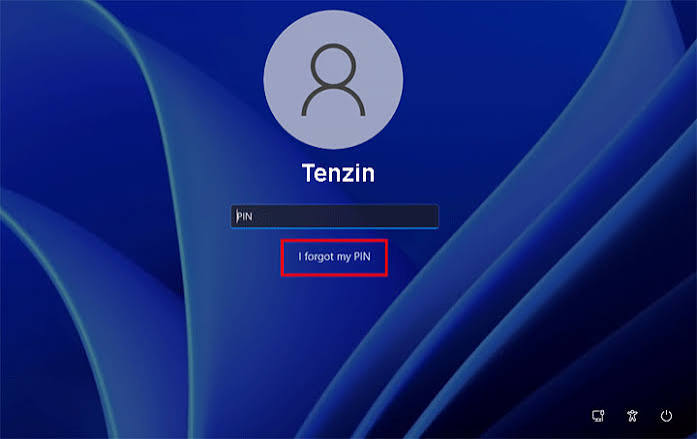
Check Your Windows PIN
If you normally use a PIN instead of your account password, you may still be able to access your computer.
At the Windows sign-in screen, look for the available sign-in options. If a PIN option is available, try entering your PIN.
If you have forgotten your PIN, select the option to reset it if Windows provides one. You may need to verify your identity using your Microsoft account.
Remember that a Windows PIN and a Microsoft account password are not necessarily the same thing.
Reset a Microsoft Account Password
Many Windows users sign in with a Microsoft account. If your Windows account is connected to Microsoft, forgetting your password does not necessarily mean you are permanently locked out.
Use Microsoft’s official account recovery process from another device. You may be asked to verify your identity using a recovery email address or phone number associated with your account.
After successfully changing the password, connect the Windows computer to the internet and try signing in with the new password.
This is generally the easiest recovery method for a Microsoft account.
Recovering a Local Windows Account
Some computers use a local Windows account instead of a Microsoft account.
If you have forgotten the password for a local account, check whether Windows provides password-reset options on the sign-in screen.
Depending on your Windows version and account configuration, you may be able to answer security questions that were created when the account was originally set up.
If you can successfully verify the answers, Windows may allow you to create a new password.
Try Another Administrator Account
If the computer has another administrator account that you are authorized to use, you may be able to manage the affected account through Windows settings.
This option is particularly useful on shared computers where more than one authorized administrator exists.
Do not attempt to access an account that belongs to another person without their permission. Account recovery should only be performed on a computer and account that you are authorized to use.
Use a Password Reset Disk
A password reset disk can help users recover access to certain local Windows accounts.
This method only works if the reset disk was created before the password was forgotten. A reset disk is therefore something worth preparing in advance, particularly for an important local account.

If you already have one, follow the password-reset instructions shown by Windows on the sign-in screen.
Check Your Password Carefully
Before using recovery methods, make sure the password is actually being entered correctly.
Check whether:
- Caps Lock is enabled.
- Num Lock is affecting your keyboard.
- You are using the correct keyboard layout.
- You accidentally added a space.
- You are entering a PIN instead of a password.
- You are using an old password instead of your current one.
Sometimes a simple keyboard issue can make a correct password appear to be incorrect.
Use Windows Recovery Options
Windows includes recovery tools that can help when you cannot sign in normally.
Depending on your situation, recovery options may include system recovery, startup repair, or resetting the PC.
Before choosing a reset option, understand what it can do to your files and applications. Some recovery choices can remove installed programs or personal data.
If your computer contains important files, consider getting help from a trusted adult, technician, or authorized support professional before choosing an option that could affect your data.
Resetting Windows as a Last Resort
If you cannot recover the account through the normal methods, Windows provides a reset option.
Resetting the PC can reinstall Windows and may allow you to start again. Depending on the option selected, personal files may be kept while applications and settings are removed, or more extensive data removal may occur.
Because resetting a computer can have significant consequences, it should generally be considered only after trying appropriate account-recovery methods.
Always make sure you understand what will happen to your files before proceeding.
Protect Your Files During Password Recovery
Password recovery should focus on regaining access without unnecessarily risking personal data.
If your files are already backed up to a trusted cloud service or external storage, recovery becomes much less stressful.
Important documents, schoolwork, photographs, and other valuable files should be backed up regularly. A backup can protect you from data loss caused by hardware failure, accidental deletion, or an unsuccessful recovery process.
Avoid Untrusted Password-Recovery Programs
When searching online for a forgotten Windows password solution, you may find programs claiming they can instantly bypass Windows security.

Be careful with these tools. Unknown software can contain malware, unwanted programs, or misleading instructions.
Avoid downloading suspicious password-recovery utilities from random websites. Use Microsoft’s official recovery options whenever possible.
If you are unsure about a recovery program, ask a trusted adult or qualified technician for assistance.
How to Prevent Forgetting Your Password Again
After regaining access to Windows, take a few steps to make future recovery easier.
First, make sure your account has updated recovery information. If you use a Microsoft account, keep your recovery email address and phone number current.
You can also use a Windows Hello sign-in method when supported by your device. A PIN, fingerprint, or other supported authentication method can make everyday sign-in easier.
A password manager can also help you securely keep track of passwords for your different accounts.
Most importantly, never share your password with other people and avoid writing it where someone else can easily find it.
Also Read:https://www.pcmag.com/
Final Thoughts
Forgetting a Windows password does not always mean you have lost access to your computer permanently. Microsoft account recovery, Windows password-reset options, another authorized administrator account, and built-in recovery features can provide legitimate ways to regain access.
Start with the simplest option, such as checking your PIN or recovering your Microsoft account. Avoid suspicious third-party password-bypass tools, especially when they require unknown downloads or make unrealistic promises.
Once you regain access, improve your account security by keeping recovery information updated, using available Windows Hello features, and maintaining regular backups.
With proper preparation, recovering from a forgotten Windows password can be much easier and safer in the future.