

Introduction
A computer that keeps freezing can be one of the most frustrating problems for any user. Whether you are working on an important document, attending an online meeting, playing games, or simply browsing the internet, a frozen PC can interrupt your work and even cause data loss. Fortunately, most computer freezing issues can be diagnosed and fixed without replacing your device.
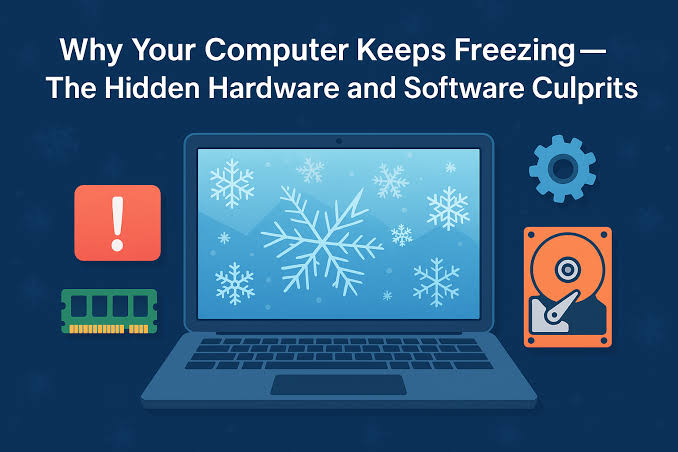
Computer freezing occurs when the operating system stops responding to keyboard and mouse input. Sometimes the screen becomes completely unresponsive, while in other cases the system eventually recovers after a few seconds. The problem can be caused by hardware failures, software conflicts, outdated drivers, overheating, malware, or insufficient system resources.
This guide explains the most common reasons why a computer freezes and provides practical solutions to restore smooth performance.
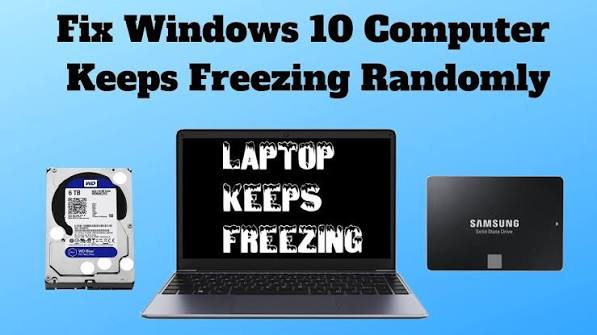
Common Causes of Computer Freezing
1. Insufficient RAM
When your computer does not have enough available memory, it struggles to run multiple applications at the same time. This often causes the system to become slow or freeze completely.
Solution:
- Close unnecessary programs.
- Disable startup applications you do not use.
- Upgrade your RAM if your computer frequently runs out of memory.
2. Overheating
Overheating is one of the leading causes of system freezes. Dust buildup inside the computer can block airflow and prevent cooling fans from working efficiently. High temperatures force the processor or graphics card to slow down or stop responding.
Solution:
- Clean dust from fans and air vents.
- Ensure proper ventilation around your computer.
- Use a cooling pad for laptops.
- Monitor CPU and GPU temperatures using trusted system monitoring software.
3. Outdated or Corrupted Drivers
Hardware drivers allow Windows to communicate with devices such as graphics cards, storage drives, printers, and network adapters. Outdated or damaged drivers can cause random freezing.
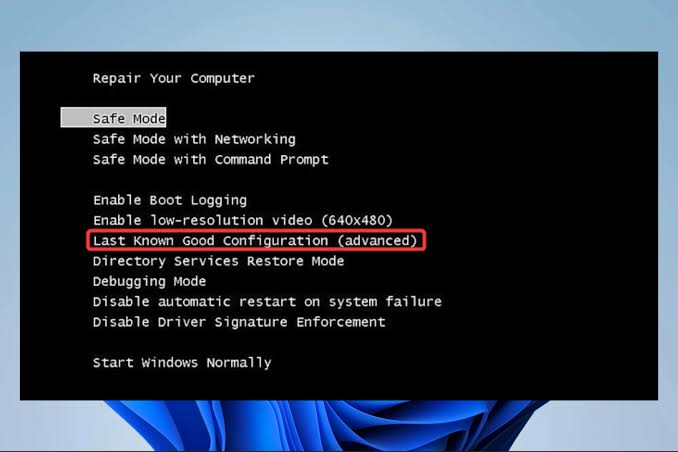
Solution:
- Open Device Manager.
- Check for devices with warning icons.
- Download the latest drivers from the manufacturer’s official website.
- Restart the computer after installing updates.
4. Malware or Viruses
Malicious software can consume system resources, corrupt files, and interfere with normal Windows processes, resulting in frequent freezes.
Solution:
- Run a full antivirus scan using Microsoft Defender or another trusted antivirus program.
- Remove any detected threats.
- Keep your antivirus software updated.
5. Hard Drive Problems
A failing hard drive or SSD can cause Windows to freeze while trying to read damaged sectors or corrupted files.
Solution:
- Check drive health using built-in Windows tools.
- Run the CHKDSK command to repair file system errors.
- Back up important files immediately if you hear unusual clicking noises or notice frequent freezing.
Also Read:https://www.minitool.com/
Basic Troubleshooting Steps
If your computer freezes regularly, try these quick fixes:
- Restart the computer to clear temporary issues.
- Install the latest Windows updates.
- Free up disk space by deleting unnecessary files.
- Disable unnecessary startup programs.
- Scan the computer for malware.
- Disconnect external devices to identify hardware conflicts.
- Check Task Manager for programs using excessive CPU, RAM, or disk resources.
These simple steps solve many freezing problems without requiring advanced technical knowledge.



