

Introduction
Whether you use a Windows PC or a Mac, there are several practical steps you can take to improve your computer’s speed and overall performance. From cleaning up storage and managing startup applications to updating software and upgrading hardware, small changes can make a noticeable difference.
This guide explains the common causes of a slow computer, provides step-by-step solutions, and shares maintenance tips to help keep your system running smoothly.
Why Does a Computer Become Slow?
Several factors can reduce your computer’s performance over time. Understanding the cause makes it easier to apply the right solution.
Common reasons include:
- Too many startup programs
- Low available storage space
- Outdated operating system
- Malware or viruses
- Too many background applications
- Insufficient RAM
- Aging hard drive
- Overheating
- Corrupted system files
- Outdated drivers
Identifying the problem is the first step toward improving performance.
Signs Your Computer Is Running Slowly
A slow computer often shows one or more of these symptoms:
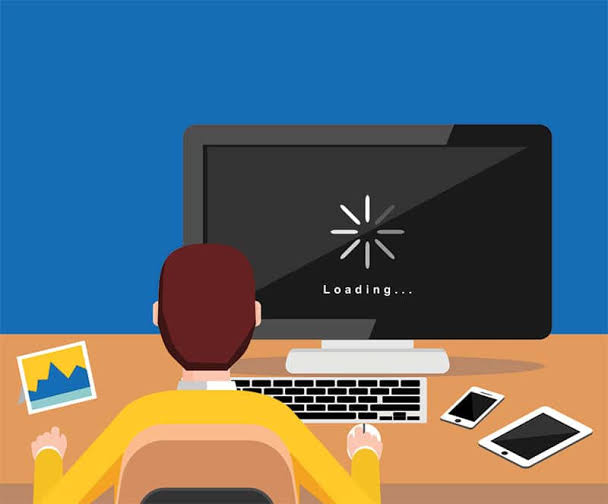
- Long startup times
- Programs taking several seconds to open
- Frequent freezing
- Delayed response to mouse or keyboard input
- Slow internet browsing (when other devices work normally)
- High CPU or memory usage
- File transfers taking longer than usual
- System crashes or unexpected restarts
If you notice these issues regularly, it’s time to optimise your system.
1. Restart Your Computer
One of the easiest fixes is simply restarting your computer.
Restarting:
- Clears temporary memory (RAM)
- Closes unnecessary background processes
- Installs pending updates
- Refreshes system resources
If your computer has been running continuously for several days, a restart may significantly improve performance.
2. Disable Unnecessary Startup Programs
Many applications automatically launch when your computer starts.
Too many startup apps can slow boot times.
Examples include:
- Chat applications
- Music players
- Cloud storage programs
- Game launchers
- Printer utilities
Disable programs you don’t need immediately after startup.
3. Free Up Storage Space
Low storage can affect overall performance.
Delete unnecessary:
- Temporary files
- Downloads
- Duplicate files
- Old videos
- Unused applications
Keep at least 15–20% of your drive free for optimal performance.
4. Uninstall Unused Software
Old programs often consume storage and system resources.
Remove software you no longer use, such as:
- Trial applications
- Old games
- Unused editing software
- Duplicate utilities
This frees space and reduces background activity.
5. Scan for Malware and Viruses
Malicious software can slow your computer dramatically.
Run a full system scan using trusted antivirus software.
Malware may:
- Consume CPU resources
- Display unwanted advertisements
- Steal information
- Slow internet performance
- Cause frequent crashes
Regular security scans help keep your system healthy.
6. Update Your Operating System
Software updates include:
- Performance improvements
- Security patches
- Bug fixes
- Hardware compatibility updates
Keeping Windows or macOS updated ensures your system runs efficiently and securely.
7. Update Device Drivers
Outdated drivers can reduce performance and create compatibility issues.
Update drivers for:
- Graphics card
- Network adapter
- Audio device
- Chipset
- Storage controller
Updated drivers often improve stability and speed.
8. Close Background Applications
Many programs continue running even after you stop using them.
Background applications consume:
- CPU power
- RAM
- Battery life
- Internet bandwidth
Close unnecessary applications to free system resources.
9. Upgrade to an SSD
If your computer still uses a traditional hard disk drive (HDD), upgrading to a solid-state drive (SSD) can dramatically improve performance.
Benefits include:
- Faster boot times
- Quicker application launches
- Faster file transfers
- Improved overall responsiveness
An SSD is one of the most effective hardware upgrades for older computers.
10. Add More RAM
When your computer frequently runs out of memory, adding more RAM can help.
More RAM improves performance when:
- Running multiple applications
- Editing photos or videos
- Gaming
- Using virtual machines
- Browsing with many tabs open
For many users, 8 GB is a practical minimum, while 16 GB provides a smoother experience for multitasking.
11. Clean Temporary Files
Temporary files accumulate over time and occupy valuable storage.
Removing them can:
- Free disk space
- Improve system performance
- Reduce software errors
Built-in disk cleanup tools can safely remove many unnecessary files.
12. Prevent Overheating
Excessive heat forces processors to slow down in order to protect themselves.
To reduce overheating:
- Clean dust from air vents
- Ensure fans are working properly
- Use the computer on a hard, flat surface
- Avoid blocking ventilation openings
- Consider using a cooling pad for laptops
Proper cooling helps maintain consistent performance.
13. Defragment Hard Drives
If your computer uses a traditional HDD, periodic defragmentation can improve file access speeds.
However, do not defragment SSDs, as they do not benefit from the process and modern operating systems automatically optimise them appropriately.
Tips for Keeping Your Computer Fast
Follow these habits to maintain good performance:
- Restart your computer regularly.
- Keep software updated.
- Install applications only from trusted sources.
- Delete files you no longer need.
- Back up important data.
- Use reliable antivirus protection.
- Monitor storage usage.
- Clean dust from your computer every few months.
Consistent maintenance helps prevent future slowdowns.
Common Mistakes to Avoid
Avoid these actions, which can negatively affect performance:
- Installing too many unnecessary programs
- Ignoring system updates
- Downloading software from unknown websites
- Letting storage become completely full
- Running too many programs at once
- Never restarting the computer
- Skipping antivirus scans
Good habits can keep your computer running efficiently for years.
When Should You Upgrade Your Computer?
If you’ve tried software fixes but your computer remains slow, hardware limitations may be the cause.
Consider upgrading if:
- Your processor is very old.
- The device cannot support additional RAM.
- Storage is failing.
- Modern applications no longer run smoothly.
- Repairs cost nearly as much as a replacement.
Sometimes upgrading specific components is enough, while in other cases purchasing a newer computer may be the better long-term solution.
Also Read:https://computer.howstuffworks.com/
Conclusion
A slow computer doesn’t always mean it’s time to replace it. In many cases, improving performance is as simple as restarting the system, removing unnecessary software, freeing storage space, updating Windows and drivers, scanning for malware, or upgrading hardware such as an SSD or additional RAM.
Regular maintenance is the key to keeping your computer fast and reliable. By following the tips in this guide, you can reduce slowdowns, improve productivity, and extend the life of your PC. Whether you use your computer for work, school, gaming, or everyday tasks, a well-maintained system will provide a smoother and more enjoyable experience.



