

Windows 11 Safe Mode is a built-in diagnostic feature that starts your computer with only the essential drivers and system services. It helps users identify and fix software issues, driver conflicts, startup problems, and malware infections. If your Windows 11 PC is crashing, freezing, or failing to boot properly, Safe Mode is often the first troubleshooting step recommended by experts.
In this guide, you’ll learn what Windows 11 Safe Mode is, when to use it, how to enter it, and the most effective ways to troubleshoot problems while using it.
What Is Windows 11 Safe Mode?
Safe Mode is a special startup mode that loads Windows with a minimal set of files, drivers, and services. Unlike a normal startup, it prevents unnecessary applications and third-party software from running automatically.
Because only the essential components are loaded, Safe Mode makes it easier to determine whether a problem is caused by Windows itself or by installed software, drivers, or malware.
Types of Safe Mode in Windows 11
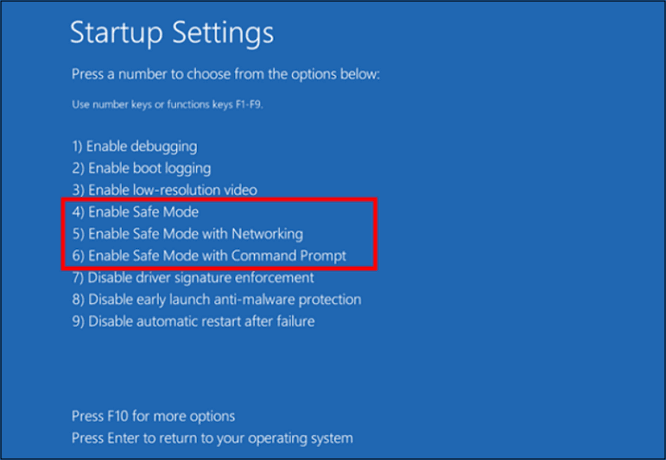
Windows 11 offers three different Safe Mode options.
1. Safe Mode
This is the standard version that loads only the basic Windows drivers and services. It is ideal for general troubleshooting.
2. Safe Mode with Networking
This option includes the drivers needed for internet and network access. It is useful if you need to:
- Download drivers
- Update Windows
- Run online antivirus scans
- Access cloud files
3. Safe Mode with Command Prompt
Instead of opening the Windows desktop, this mode launches Command Prompt. It is mainly used by advanced users and IT professionals for system repair commands.
Why Use Safe Mode?
Safe Mode is useful in many situations, including:
- Windows 11 won’t start normally
- Frequent Blue Screen of Death (BSOD) errors
- Driver installation problems
- Malware or virus infections
- Software conflicts
- Slow system performance after installing updates
- Startup applications causing crashes
Running Windows in Safe Mode helps isolate the source of the problem without interference from unnecessary software.
How to Enter Safe Mode in Windows 11
There are several methods to boot into Safe Mode.
Method 1: From Windows Settings
If Windows is working normally:
- Open Settings.
- Click System.
- Select Recovery.
- Under Advanced Startup, click Restart Now.
- Choose Troubleshoot.
- Select Advanced Options.
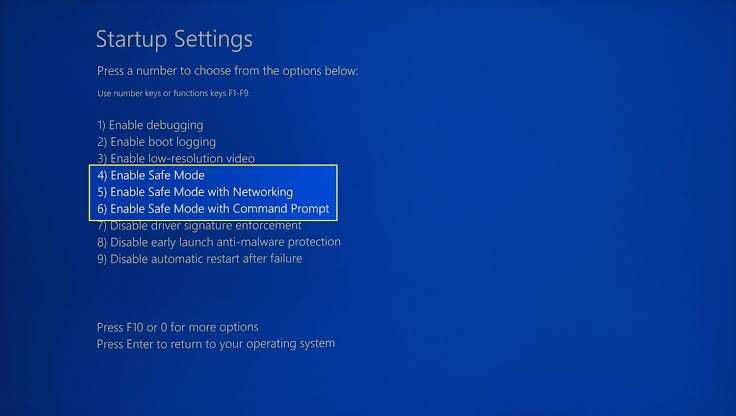
- Click Startup Settings.
- Choose Restart.
- Press:
- 4 for Safe Mode
- 5 for Safe Mode with Networking
- 6 for Safe Mode with Command Prompt
Your PC will restart in the selected Safe Mode.
Method 2: Using Shift + Restart
This is one of the fastest methods.
- Click the Start menu.
- Select the Power button.
- Hold the Shift key.
- Click Restart.
- Follow the Startup Settings menu to choose Safe Mode.
Method 3: Using System Configuration (MSConfig)
- Press Windows + R.
- Type msconfig.
- Press Enter.
- Open the Boot tab.
- Check Safe boot.
- Select:
- Minimal
- Network
- Alternate Shell
- Click Apply and OK.
- Restart your PC.
Remember to disable Safe Boot later, or your PC will continue booting into Safe Mode.
Method 4: If Windows Won’t Start
If Windows cannot boot:
- Turn on your computer.
- Force shutdown when the Windows logo appears.
- Repeat this process three times.
- Windows will enter Automatic Repair.
- Select Advanced Options.
- Navigate to:
- Troubleshoot
- Advanced Options
- Startup Settings
- Restart and choose your Safe Mode option.
What Can You Do in Safe Mode?
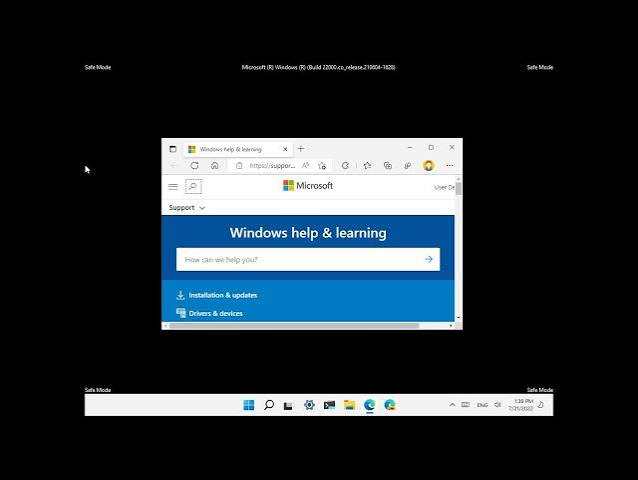
Safe Mode provides a stable environment for troubleshooting.
Remove Problematic Software
If a newly installed application causes crashes, uninstall it in Safe Mode.
Update or Roll Back Drivers
Faulty graphics, audio, or network drivers often cause system instability. Use Device Manager to update or roll back drivers.
Run Windows Security
Safe Mode is useful for scanning and removing stubborn malware that may not be removable during a normal startup.
Uninstall Recent Windows Updates
If issues began after a Windows update, Safe Mode allows you to remove problematic updates.
Use System Restore
Restore your computer to an earlier working state if a recent change caused problems.
Common Problems Safe Mode Can Fix
Safe Mode helps resolve issues such as:
- Black screen after login
- Windows stuck on loading screen
- Startup repair loops
- Driver conflicts
- Application crashes
- Malware infections
- Slow boot times
- System freezes
Although Safe Mode cannot solve every issue, it is often the first step toward identifying the root cause.
How to Exit Safe Mode
Leaving Safe Mode is simple.
Method 1
Restart your computer normally.
Method 2
If your PC keeps starting in Safe Mode:
- Press Windows + R.
- Type msconfig.
- Open the Boot tab.
- Uncheck Safe boot.
- Click Apply.
- Restart your PC.
Windows will return to its normal startup.
Safe Mode vs Normal Mode
| Feature | Safe Mode | Normal Mode |
|---|---|---|
| Essential Drivers | Yes | Yes |
| Third-Party Programs | No | Yes |
| Startup Apps | Disabled | Enabled |
| Internet Access | Only with Networking | Yes |
| Best For | Troubleshooting | Daily Use |
Tips for Troubleshooting in Safe Mode
To get the best results:
- Remove recently installed software.
- Update outdated drivers.
- Run a full malware scan.
- Check Windows Update history.
- Use System Restore if necessary.
- Test whether the issue disappears in Safe Mode.
If the problem does not occur in Safe Mode, it is likely caused by a third-party application or driver.
Frequently Asked Questions
Is Safe Mode safe to use?
Yes. Safe Mode is a built-in Windows feature designed specifically for diagnosing and repairing system problems.
Can I use the internet in Safe Mode?
Yes, but only if you choose Safe Mode with Networking.
Will Safe Mode delete my files?
No. Safe Mode does not remove personal files, documents, or installed applications.
Why is my PC faster in Safe Mode?
Safe Mode loads only essential services, so fewer programs consume system resources.
Can Safe Mode remove viruses?
It can help remove many types of malware because malicious programs often do not load in Safe Mode. However, using trusted antivirus software is still recommended.
Also Read:https://www.aomeitech.com/
Conclusion
Windows 11 Safe Mode is one of the most valuable troubleshooting tools available for Windows users. Whether your computer is experiencing startup failures, software conflicts, malware infections, or driver problems, Safe Mode provides a clean environment to diagnose and resolve issues efficiently.
Knowing how to access Safe Mode and use its features can save time and even prevent the need for a complete Windows reinstall. By following the methods outlined in this guide, you can confidently troubleshoot common Windows 11 problems and restore your PC to normal operation.



