

A slow laptop can make even simple tasks frustrating. Applications may take longer to open, websites can feel sluggish, and the system may freeze when several programs are running at the same time. Fortunately, you do not always need to buy a new laptop to solve performance problems. With a few practical changes, you can often make an older laptop noticeably faster.
Whether you are using your laptop for work, studying, gaming, browsing, or entertainment, the following methods can help improve its speed and responsiveness.
1. Restart Your Laptop Regularly
One of the simplest ways to improve laptop performance is to restart it regularly. When a laptop stays on for a long time, temporary files, background processes, and memory usage can build up.
Restarting closes unnecessary processes and gives the operating system a fresh start. If your laptop has become unusually slow, try restarting it before making more complicated changes.
2. Close Unnecessary Programs
Running too many applications at once can consume RAM and processor resources. If you have several programs open that you are not currently using, close them.
On Windows, press Ctrl + Shift + Esc to open Task Manager. Under the Processes section, you can see which applications are using CPU and memory resources.
Only close programs you recognize and do not need.
3. Disable Unnecessary Startup Programs
Some applications automatically launch every time you turn on your laptop. Too many startup programs can increase boot time and use system resources in the background.
Open Task Manager and select the Startup apps section. Review the list and disable applications that you do not need to start automatically.
Avoid disabling important Windows services or security software unless you know exactly what they do.
4. Free Up Storage Space
A nearly full storage drive can contribute to poor performance. Remove files that you no longer need, including old downloads, temporary files, duplicate documents, and unused installers.
Windows includes storage-management tools that can help identify files taking up space. Emptying the Recycle Bin can also recover some storage.
Try to keep a reasonable amount of free space on your main drive.
5. Uninstall Programs You Do Not Use
Unused applications take up storage space and may install background services. If you have programs that you no longer use, uninstalling them can help keep your system organized.
Go to Settings > Apps > Installed apps in Windows and review the applications installed on your laptop. Remove software that you are certain you no longer need.
6. Keep Windows Updated
Operating system updates can include bug fixes, security improvements, driver updates, and performance-related changes. Keeping Windows updated can therefore help maintain a stable laptop.
Open Settings > Windows Update and check for available updates. Restart the laptop when Windows asks you to complete an update.
7. Update Your Drivers
Outdated or damaged drivers can sometimes cause performance problems. Graphics, chipset, network, audio, and storage drivers can all affect how smoothly a laptop operates.
Use reliable sources such as your laptop manufacturer’s official support website when downloading drivers. Avoid random driver-download websites because they may provide incorrect or unwanted software.
8. Scan for Malware
Malware can consume processor, memory, network, and storage resources. If your laptop suddenly becomes slow, freezes frequently, or behaves unusually, perform a security scan.
Windows Security provides built-in protection for Windows users. Run a full scan if you suspect unwanted software is affecting your computer.
9. Reduce Browser Extensions
Web browsers can become slow when too many extensions are installed. Some extensions continuously run in the background and consume memory.
Open your browser’s extension settings and remove extensions you no longer use. Keep only those that provide a genuine benefit.
Also consider closing browser tabs that you are finished with, especially if your laptop has limited RAM.
10. Upgrade From HDD to SSD
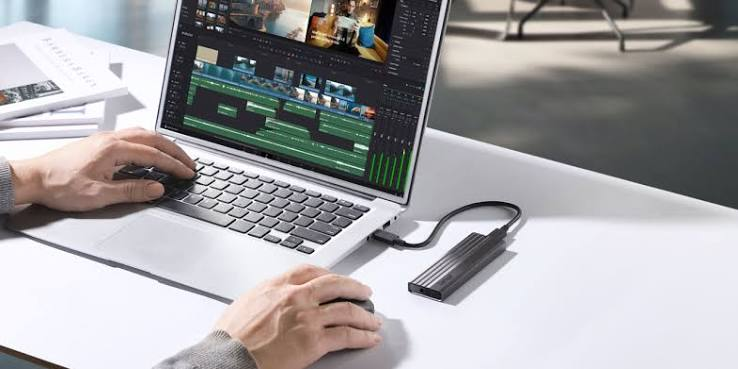
If your laptop still uses a traditional hard disk drive, upgrading to an SSD can make one of the biggest differences in everyday performance.
An SSD can significantly improve boot times, application loading, file transfers, and general system responsiveness. If your laptop supports an SSD upgrade, it may be a more practical investment than replacing the entire computer.
Before purchasing an SSD, check your laptop’s specifications to determine which type and size are compatible.
11. Add More RAM
RAM affects how many applications your laptop can handle comfortably at the same time. If your laptop has limited RAM, multitasking can become difficult.
For example, running a browser with many tabs alongside video-editing software and other applications can consume a large amount of memory.
If your laptop supports a RAM upgrade, adding more memory may improve multitasking performance. Check the maximum supported RAM and compatible memory type before purchasing anything.
12. Manage Visual Effects
Windows includes animations and visual effects that can make the interface look attractive but may consume additional system resources.
On an older or lower-powered laptop, reducing unnecessary visual effects can make the system feel more responsive. Search Windows for Adjust the appearance and performance of Windows and review the available performance options.
13. Keep Your Laptop Cool
Heat can affect laptop performance. When internal components become too hot, the system may reduce performance to control temperatures.
Make sure air vents are not blocked by clothing, blankets, or other surfaces. Use your laptop on a hard, flat surface whenever possible and keep the ventilation openings clean.
If the laptop becomes extremely hot or its fan constantly runs at high speed, professional cleaning may be appropriate.
14. Remove Temporary Files
Temporary files accumulate as you use Windows and different applications. Over time, unnecessary temporary data can take up valuable storage.
Windows provides built-in storage tools for removing temporary files. Review the categories carefully before deleting anything, particularly if you have files you may still need.
15. Optimize Your Browser
If most of your laptop usage happens online, browser performance can make a major difference.
Clear unnecessary cached data, close unused tabs, remove unwanted extensions, and keep your browser updated. If one website consistently causes high CPU or memory usage, check whether another tab or application is responsible.
16. Use a Lightweight Power Plan When Appropriate
Power settings can influence laptop performance. Battery-saving modes may reduce processor performance to extend battery life.
If you need maximum performance while plugged into a power source, review Windows power settings and select an appropriate performance-oriented option when available.
For everyday battery use, however, a balanced setting may provide a better combination of performance and battery life.
17. Avoid Installing Unnecessary Optimization Software
Many programs claim to make computers faster with one click. Some are unnecessary, while others may add more background processes to your laptop.
Instead of installing multiple “PC booster” applications, use the Windows tools already available for managing storage, startup applications, security, and updates.
18. Restart Resource-Heavy Applications
Some applications can gradually consume increasing amounts of memory during long sessions. If a program becomes unusually slow, closing and reopening it may restore normal performance.
This is particularly useful for browsers, editing applications, and other software that you keep open for many hours.
19. Check Your Laptop’s Hardware
If software changes do not improve performance, the problem may be related to hardware. An aging battery, failing storage drive, insufficient RAM, overheating, or an older processor can all contribute to slow performance.
If your laptop frequently freezes, crashes, or takes an unusually long time to load files, consider having the hardware checked by a qualified technician.
20. Consider a Clean Windows Installation
If your laptop has been used for years and accumulated large amounts of unnecessary software, a clean Windows installation can provide a fresh start.
Before doing this, back up important documents, photos, school files, and other personal data. Make sure you have the necessary account information and installation details before resetting or reinstalling Windows.
Also Read:https://www.microcenter.com/
Final Thoughts
Making a laptop faster does not always require expensive upgrades. Simple steps such as restarting regularly, removing unnecessary applications, disabling unwanted startup programs, freeing storage space, updating Windows, and scanning for malware can make a noticeable difference.
For older laptops, hardware upgrades can provide even greater improvements. Moving from an HDD to an SSD and increasing RAM, when supported, are two of the most useful upgrades for everyday performance.
Start with the easiest solutions first and monitor your laptop after each change. If the system remains slow despite these improvements, the underlying hardware may be reaching its limits. In that situation, a professional hardware check or a newer laptop may be the best long-term solution.